> For the complete documentation index, see [llms.txt](https://doc.anytype.io/anytype/llms.txt). Markdown versions of documentation pages are available by appending `.md` to page URLs; this page is available as [Markdown](https://doc.anytype.io/anytype/features/embeds.md).
# Embeds
Add live external content directly inside your Objects.
An **Embed** is a block in the editor that displays live content from an external service — a YouTube video, a Miro board, a Google Maps location, a Mermaid diagram. Instead of just linking to the source, the content renders inside your Object so you can see and (in many cases) interact with it without leaving Anytype.
## Why it matters
Embeds keep your work in one place. A project page can show:
* The Miro brainstorm next to the meeting notes
* A YouTube tutorial that explains the technique
* A Google Maps route to the venue
* A Mermaid diagram of the system architecture
…all without bouncing between tabs and apps. When you come back to the page weeks later, everything you need is still there — and the embedded content reflects whatever's current at the source.
## Adding an Embed
The fastest way:
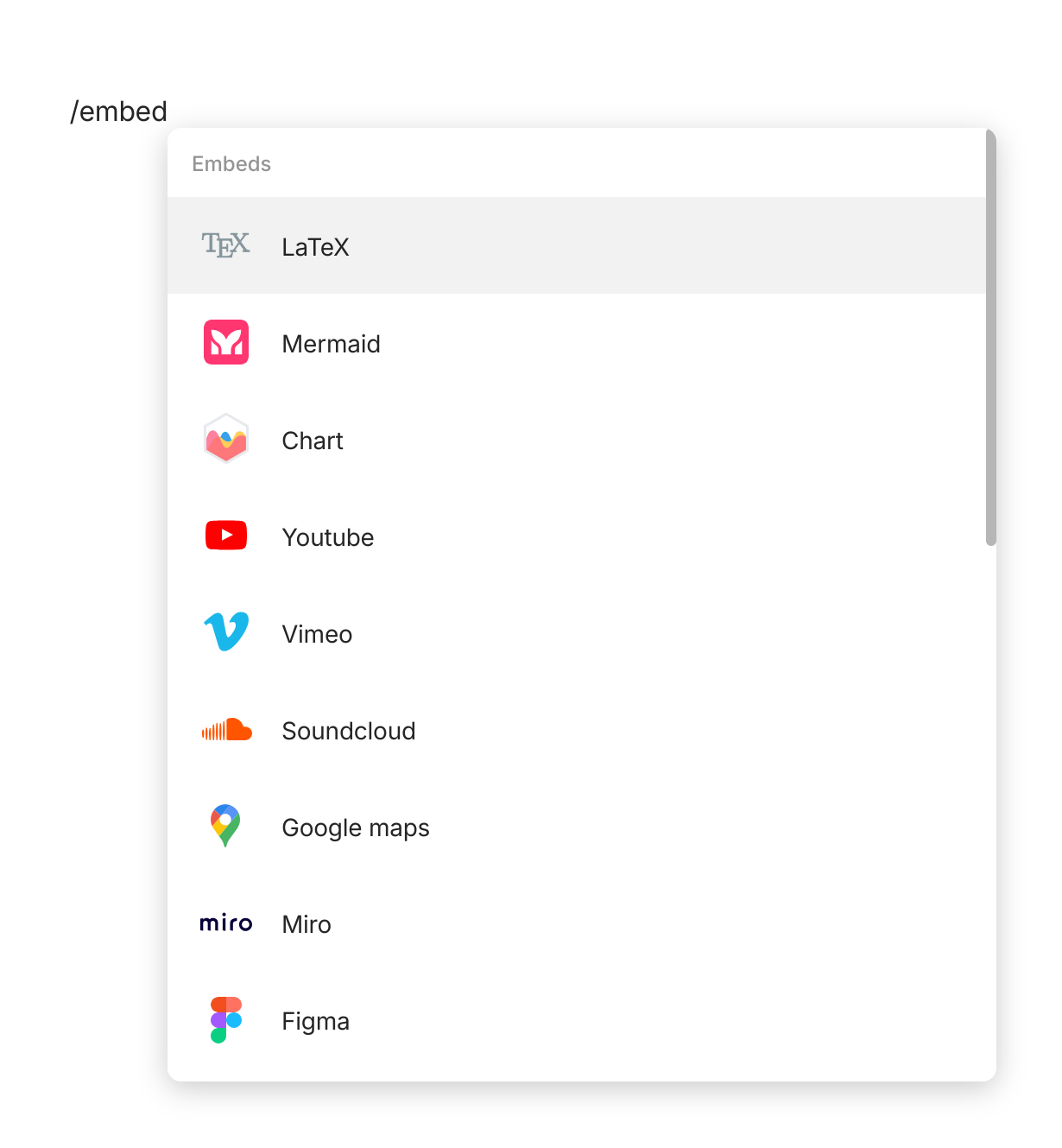
1. In the editor, type `/` to open the menu and type the name of your desired Embed—[full list here](#supported-embed-types). Or scroll down to the Embeds section.
2. Pick the type and paste the URL when prompted.
You can also paste a URL directly into the editor. The paste menu offers four options:
* **Mention** — insert as a clickable link in the text flow
* **Bookmark** — create a bookmark card with preview metadata
* **Embed** — embed the live content (only works for supported services)
* **Link** — paste as plain URL
If the URL is from a recognized embeddable service, **Embed** is the default. For unknown services, you'll see only **Mention**, **Bookmark**, and **Link**.
## Supported Embeds
#### Video and audio
* **YouTube** — paste any YouTube URL, including timestamped links
* **Vimeo** — paste a video URL
* **Bandcamp** — paste an album or track URL
* **SoundCloud** — paste a track or playlist URL
* **Apple Music** — paste a song, album, or playlist link
#### Diagrams and visual
* **Mermaid** — write Mermaid syntax inline, rendered as a flowchart, sequence diagram, or other Mermaid output
* **Miro** — paste a Miro board URL (anyone with a public Miro link can view; private boards require viewer access)
* **Excalidraw** — embed an Excalidraw diagram editor as a block, edit inline (temporarily disabled due to performance issues)
* **Figma** — paste a Figma frame or file URL
* **draw\.io** — paste a published diagram URL
#### Maps and locations
* **Google Maps** — paste a Maps URL or coordinates
* **OpenStreetMap** — paste a location URL
#### Code and content
* **LaTeX** — see here for more information: [Inline LaTeX](/anytype/create/editor/inline-latex.md)
* **GitHub Gist** — paste a Gist URL
* **CodePen** — paste a Pen URL
* **CodeSandbox** — paste a sandbox URL
#### Social and reference
* **Twitter / X**
* **Reddit**
* **Facebook**
* **Instagram**
## File embeds
Beyond external URLs, you can embed files directly from your Objects:
* **Image** — drag in an image, paste from clipboard, or use `/image`
* **Video** — drag in or use `/video`
* **Audio** — drag in or use `/audio`
* **PDF** — drag in or use `/pdf`
These embeds are connected to the [File Object](/anytype/create/files-and-media.md) — the file becomes its own Object in your Channel that you can find, link, and tag.
#### File block default style
For File blocks (Image, Video, Audio, File), you can choose between two display modes:
* **Embedded preview** — the file renders inline (image visible, video player active, audio player ready)
* **Compact link** — a small link with the filename, opens the full file when clicked
The default is set in **Vault Settings > Application > Editor Personalization > File block default style**. You can also override per-block: hover over a file block, click the three-dot menu, and choose the alternate style.
### Resizing and arranging Embeds
Most embed blocks (especially videos, maps, and visual content) have a resize handle. Drag the handle to make the embed larger or smaller. Changes are saved per-block.
You can put an embed in a column alongside text by dragging it next to another block — see [Blocks](/anytype/create/editor.md) for column layouts.
### Mermaid syntax (quick reference)
Mermaid is a text-based diagram language. Type `/mermaid` to insert a Mermaid block, then write syntax like:
```
graph TD
A[Start] --> B{Decision}
B -->|Yes| C[Do thing]
B -->|No| D[Do other thing]
```
Anytype renders this as a flowchart in real time. Mermaid supports flowcharts, sequence diagrams, Gantt charts, class diagrams, and more — see the [Mermaid documentation](https://mermaid.js.org) for full syntax.
## Tips
{% hint style="info" %}
**Embed reference, link to source for citation.** A Wikipedia article is best linked (it's not very embeddable); a Miro board is best embedded (you want to see it). Pick the format that matches how you'll use it.
{% endhint %}
{% hint style="info" %}
**Use Mermaid for living diagrams.** Mermaid diagrams are text — if you change the diagram in your Object, the change persists. Compare with a screenshot of a diagram, which goes stale the moment you change something.
{% endhint %}
{% hint style="warning" %}
**Embeds rely on the external service.** If YouTube changes their embed API or a Miro board is deleted, the embed in your Object stops working. Important content should also be saved as a Bookmark or downloaded copy as a backup.
{% endhint %}
---
# Agent Instructions
This documentation is published with GitBook. GitBook is the documentation platform designed so that both humans and AI agents can read, navigate, and reason over technical content effectively. Learn more at gitbook.com.
## Querying This Documentation
If you need additional information that is not directly available in this page, you can query the documentation by asking a question.
Perform an HTTP GET request on the following URL with the `ask` and `goal` query parameters:
```
GET https://doc.anytype.io/anytype/features/embeds.md?ask=&goal=
```
`ask` is the immediate question: it should be specific, self-contained, and written in natural language.
`goal` is what the user is ultimately trying to achieve, the reason they need the answer. Sharing it helps GitBook give you a better, more relevant answer. A goal is most helpful when it describes the outcome the user wants rather than restating the question. For example, with `ask=how do I create an API token`, a goal like `automate deployments from our CI pipeline` lets GitBook tailor the answer to that use case.
The response will contain a direct answer to the question and relevant excerpts and sources from the documentation.
Use this mechanism when the answer is not explicitly present in the current page, you need clarification or additional context, or you want to retrieve related documentation sections.