> For the complete documentation index, see [llms.txt](https://doc.anytype.io/anytype/llms.txt). Markdown versions of documentation pages are available by appending `.md` to page URLs; this page is available as [Markdown](https://doc.anytype.io/anytype/getting-started/install.md).
# Install
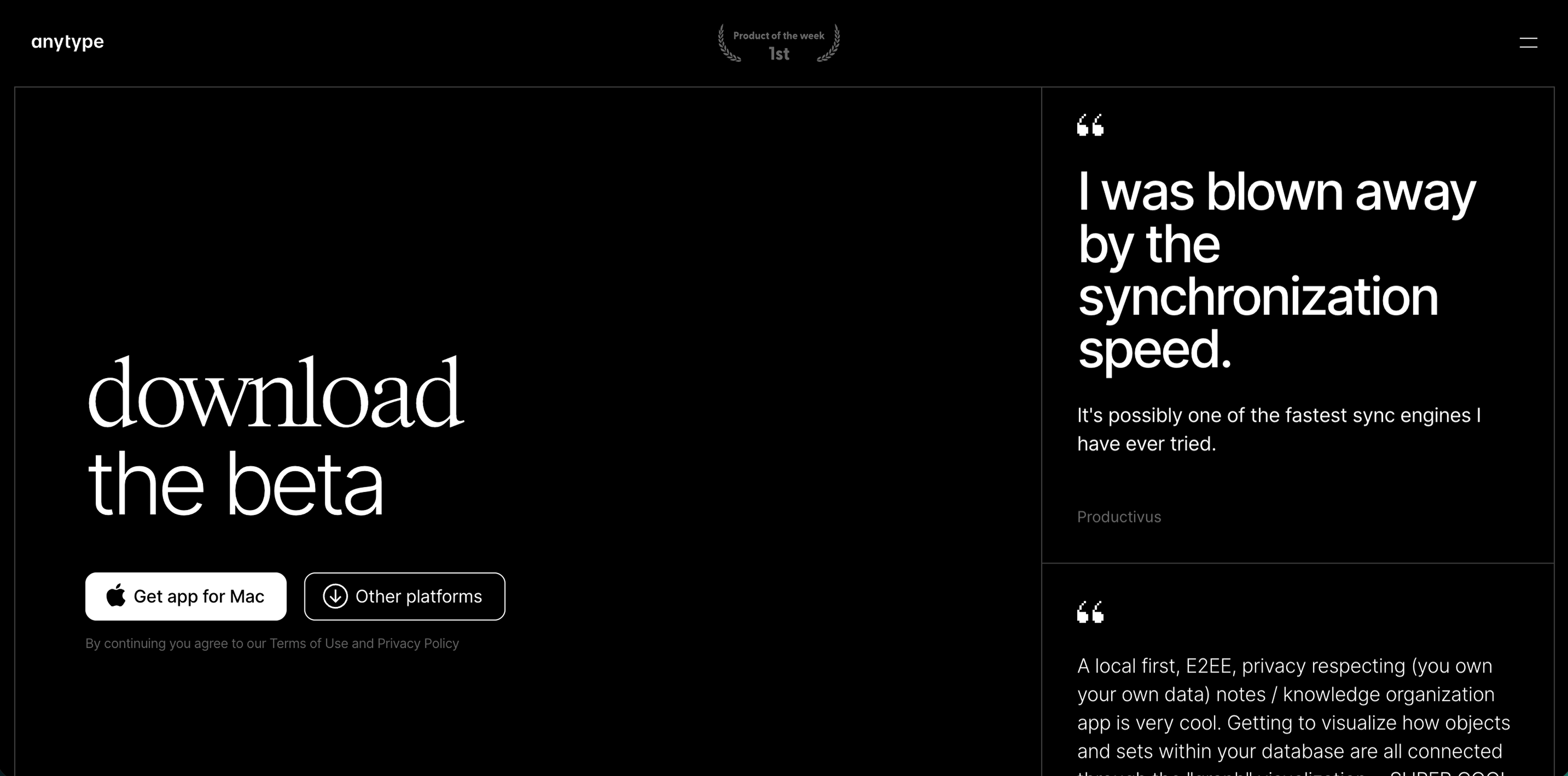
You can download the latest version of Anytype for your device at [download.anytype.io](https://download.anytype.io). It is available on macOS, Windows, Linux, iOS, and Android. Or you can search for 'Anytype' directly on your phone's app store.
## Get started
#### Create
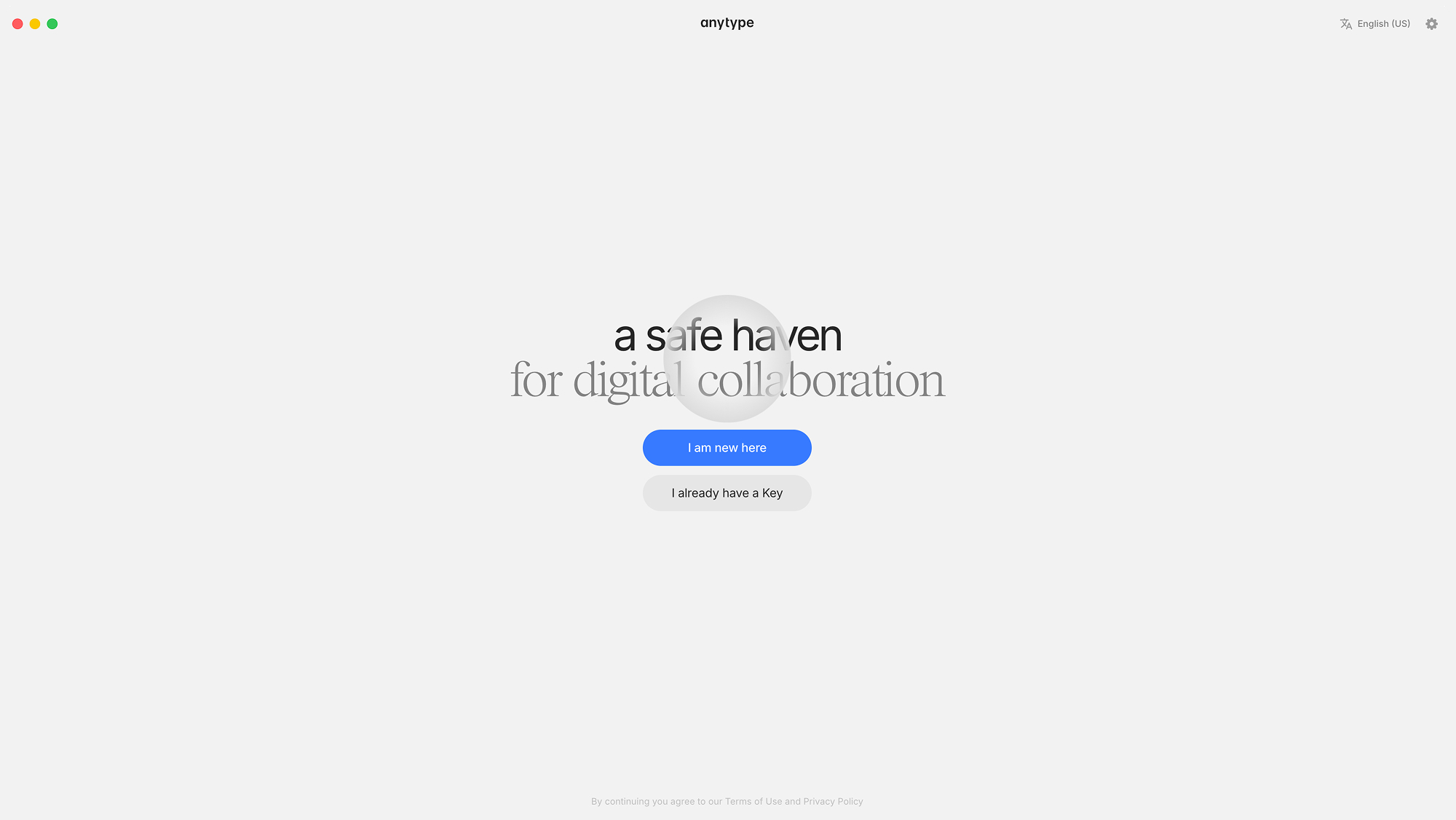
If this is your first time, click on 'I am new here'. If you already have an account, click on 'I already have a Key'.
#### Language
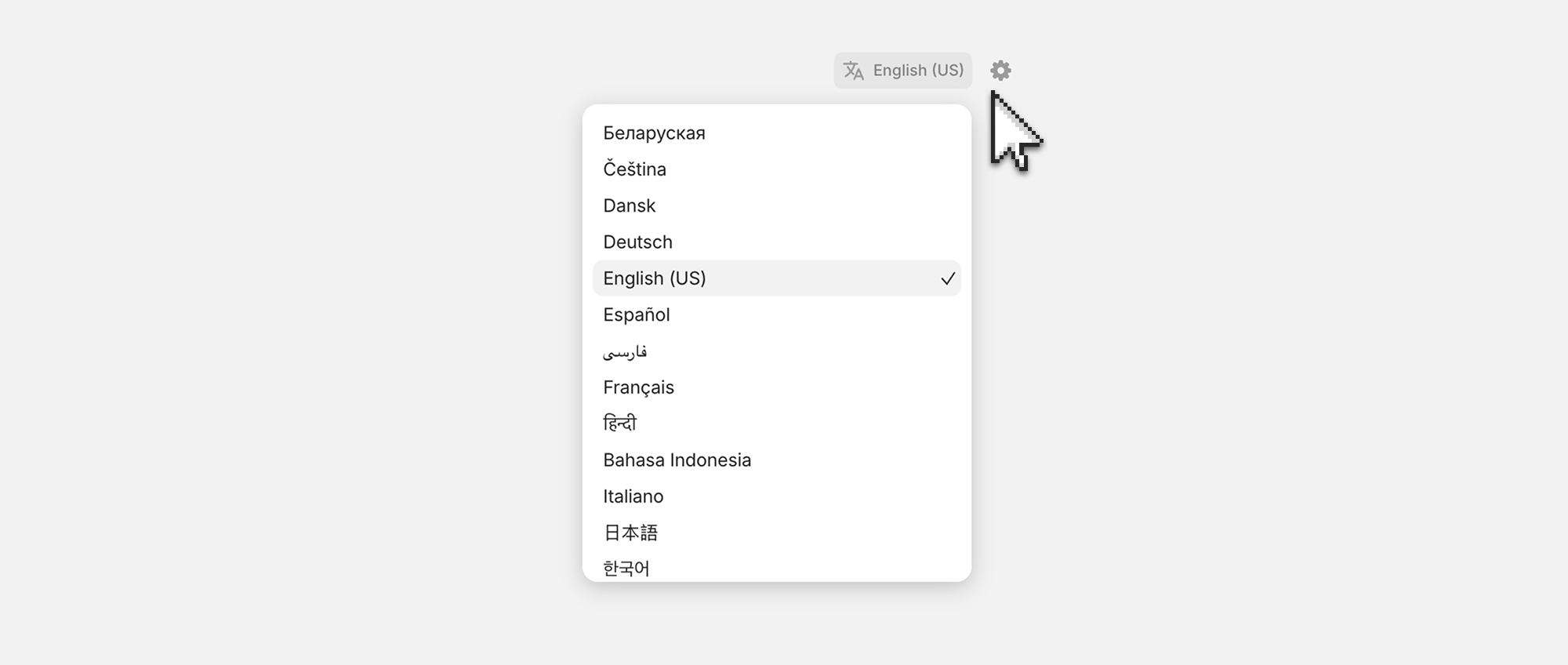
If you would like to use a language other than English for the interface, you can select it in the top right corner.
#### Save your Key
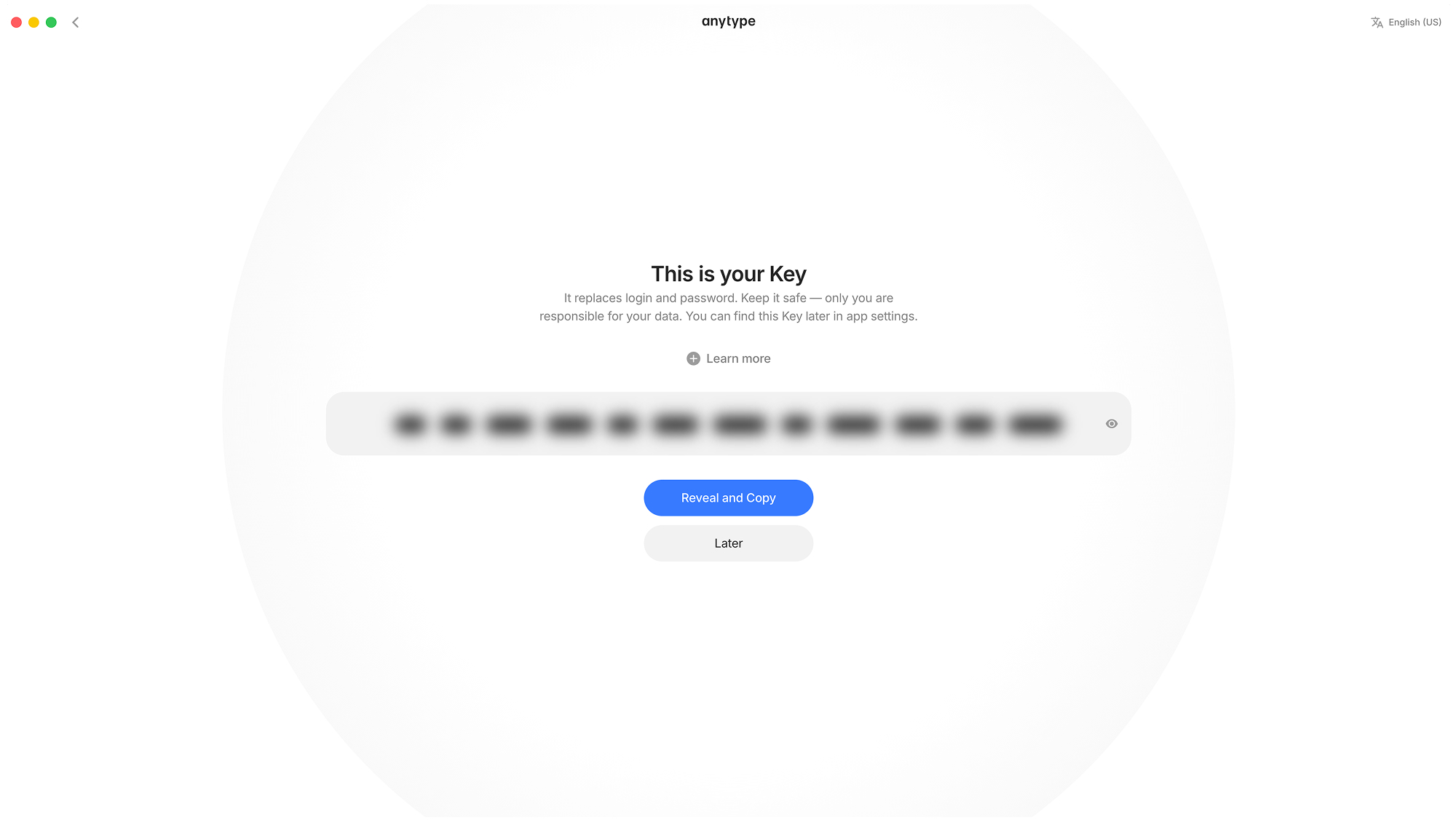
Your [Key](/anytype/basics/key.md) is the only way to access your account—treat it like an email and password combined that you can never reset. Store it somewhere secure and never share it with anyone. Anyone who has your Key has full access to your account.
If you lose your Key, your account cannot be recovered—by anyone, including Anytype. This is intentional: Anytype's security model lets anyone create an account without needing permission from a central authority.
{% hint style="danger" %}
Store your [Key](/anytype/basics/key.md) somewhere safe and never share it with anyone. Whoever has access to your key has access to your account. It cannot be recovered.
{% endhint %}
#### Log in on other devices
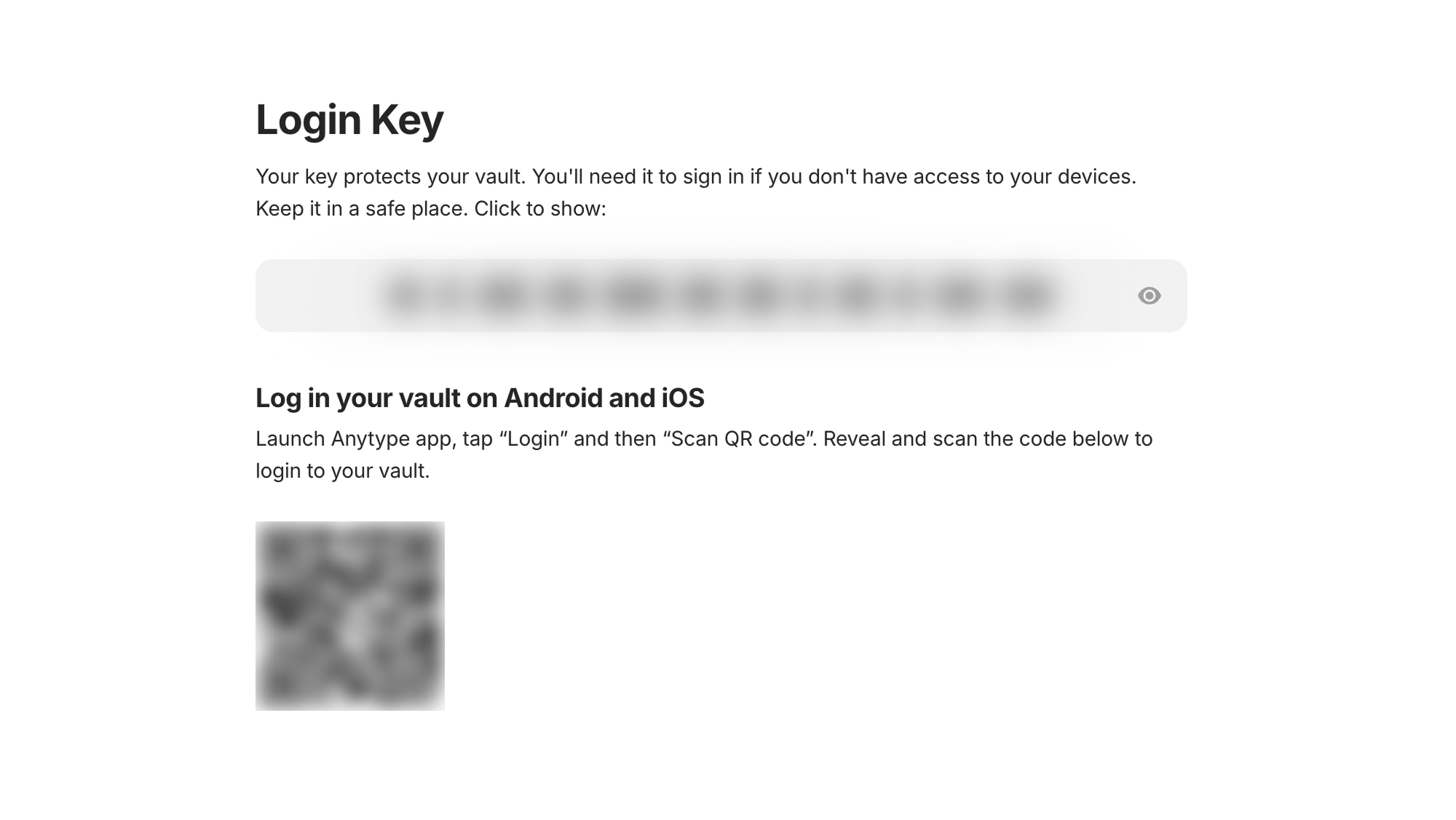
In addition to using your [Key](/anytype/basics/key.md) to log in, you can also use the QR code to log in faster. This is especially handy to sign in on your mobile devices if your desktop is close by. Having multiple devices logged in also creates more backups for you to recover your account from.
1. Navigate to your [Vault Settings](/anytype/settings/vault-settings.md).
2. Click **Login Key**.
3. Click on the QR code and scan it with your device.
## After installation
Once you've created your Vault and saved your Key, you'll land in a sandbox where you can poke around, open things, and break stuff. Go wild and explore with no pressure. When you're ready to start your own work, create a new Channel.
If you'd like a quick overview of how Anytype's core concepts fit together, start with our [Overview](/anytype/basics/overview.md).
#### Import
If you would like to import some of your existing data into your Space, you can find the instructions on how to do so in [Import & Export](/anytype/data/import-and-export.md).
---
# Agent Instructions
This documentation is published with GitBook. GitBook is the documentation platform designed so that both humans and AI agents can read, navigate, and reason over technical content effectively. Learn more at gitbook.com.
## Querying This Documentation
If you need additional information that is not directly available in this page, you can query the documentation by asking a question.
Perform an HTTP GET request on the following URL with the `ask` and `goal` query parameters:
```
GET https://doc.anytype.io/anytype/getting-started/install.md?ask=&goal=
```
`ask` is the immediate question: it should be specific, self-contained, and written in natural language.
`goal` is what the user is ultimately trying to achieve, the reason they need the answer. Sharing it helps GitBook give you a better, more relevant answer. A goal is most helpful when it describes the outcome the user wants rather than restating the question. For example, with `ask=how do I create an API token`, a goal like `automate deployments from our CI pipeline` lets GitBook tailor the answer to that use case.
The response will contain a direct answer to the question and relevant excerpts and sources from the documentation.
Use this mechanism when the answer is not explicitly present in the current page, you need clarification or additional context, or you want to retrieve related documentation sections.