Views
Views are visual lenses that you place over your content. They allow you to view the same information in different formats, shapes, and orders without changing the underlying content. Types, Queries, and Collections all use Views to display their content to you.
Analogy: Imagine a building with one hundred people in it. Changing the 'View' doesn't change who is in the building, it just changes where they are. You can have all the people with red clothing in the lobby, while everybody else hides in the basement. Or you can arrange all the people in a long line from shortest to tallest.

Why it matters
With Views, you can surface new perspectives on your content, such as time-based items in a calendar or visual-driven content in a gallery. In short, you can arrange and display the same content in multiple different ways.
With Views, you never need to duplicate content. You can operate from the same set of Objects, just rearranged to suit your needs each time.
How it works
There are three core components to a View:
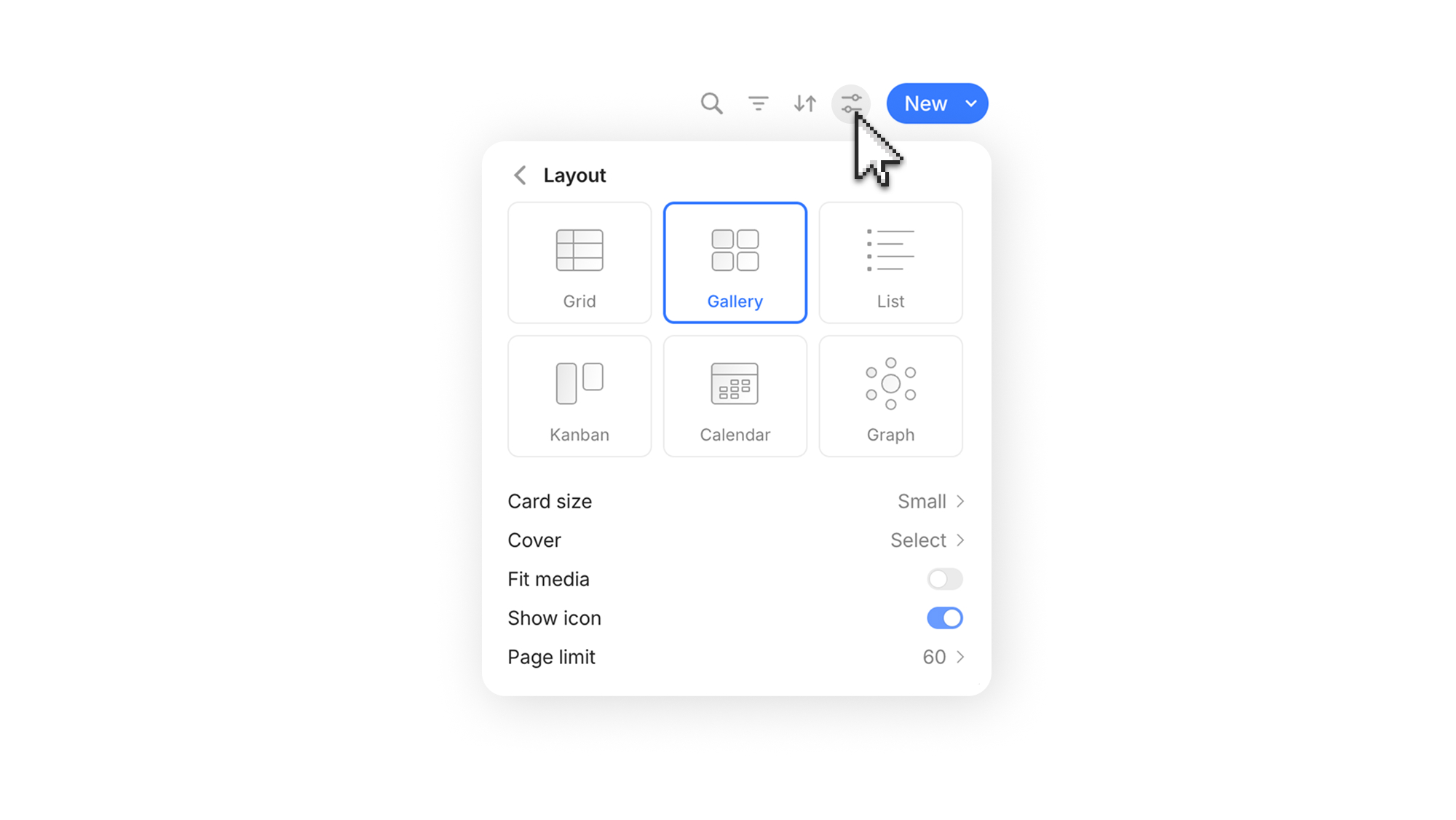
Layouts — how Objects are visually structured, such as in a 'gallery layout'. See examples.
Filters — which Objects are displayed, such as a filter for 'status is complete'.
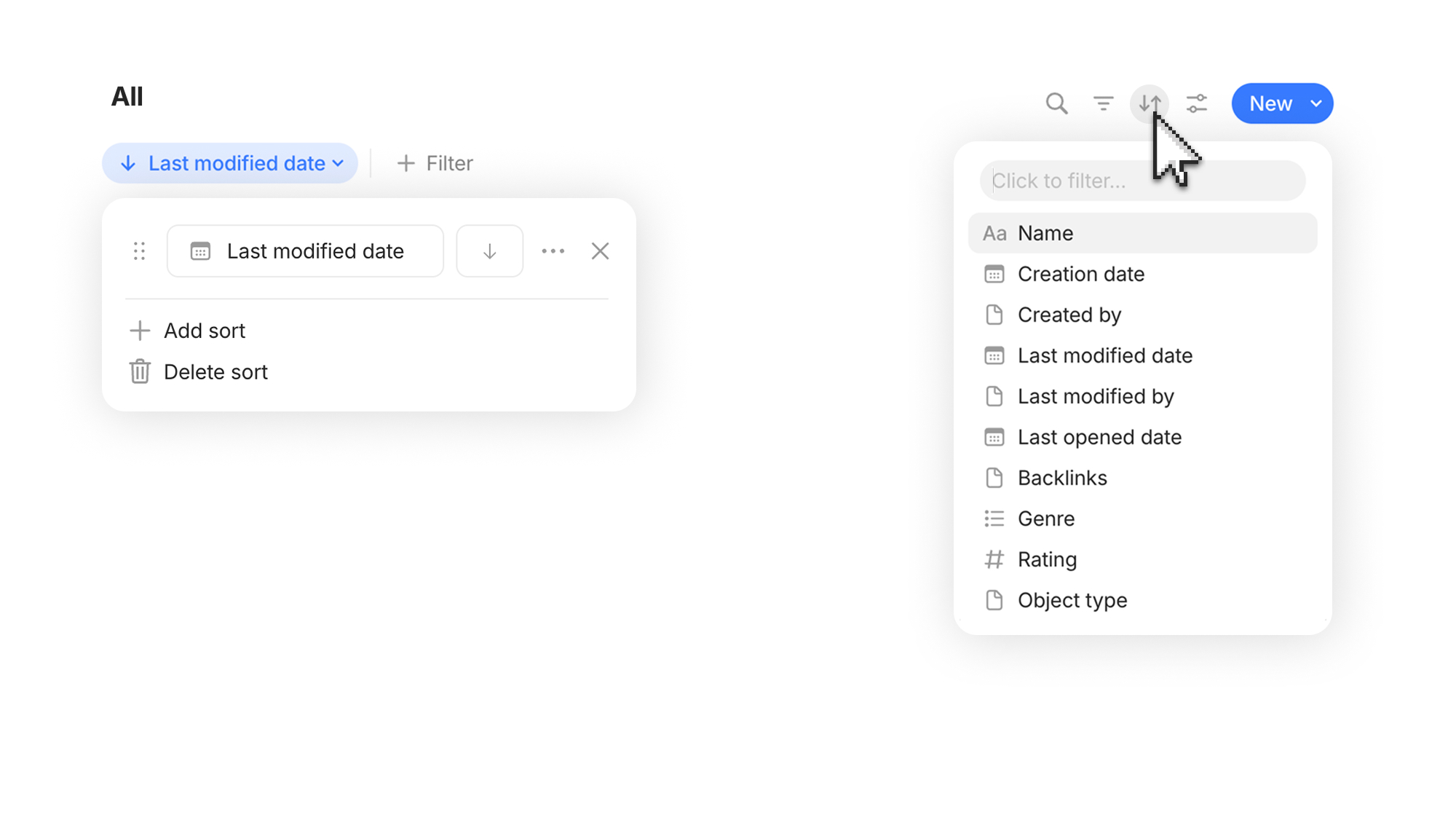
Sorts — what sequence Objects appear, such as a sort for 'alphabetical'.
Layouts
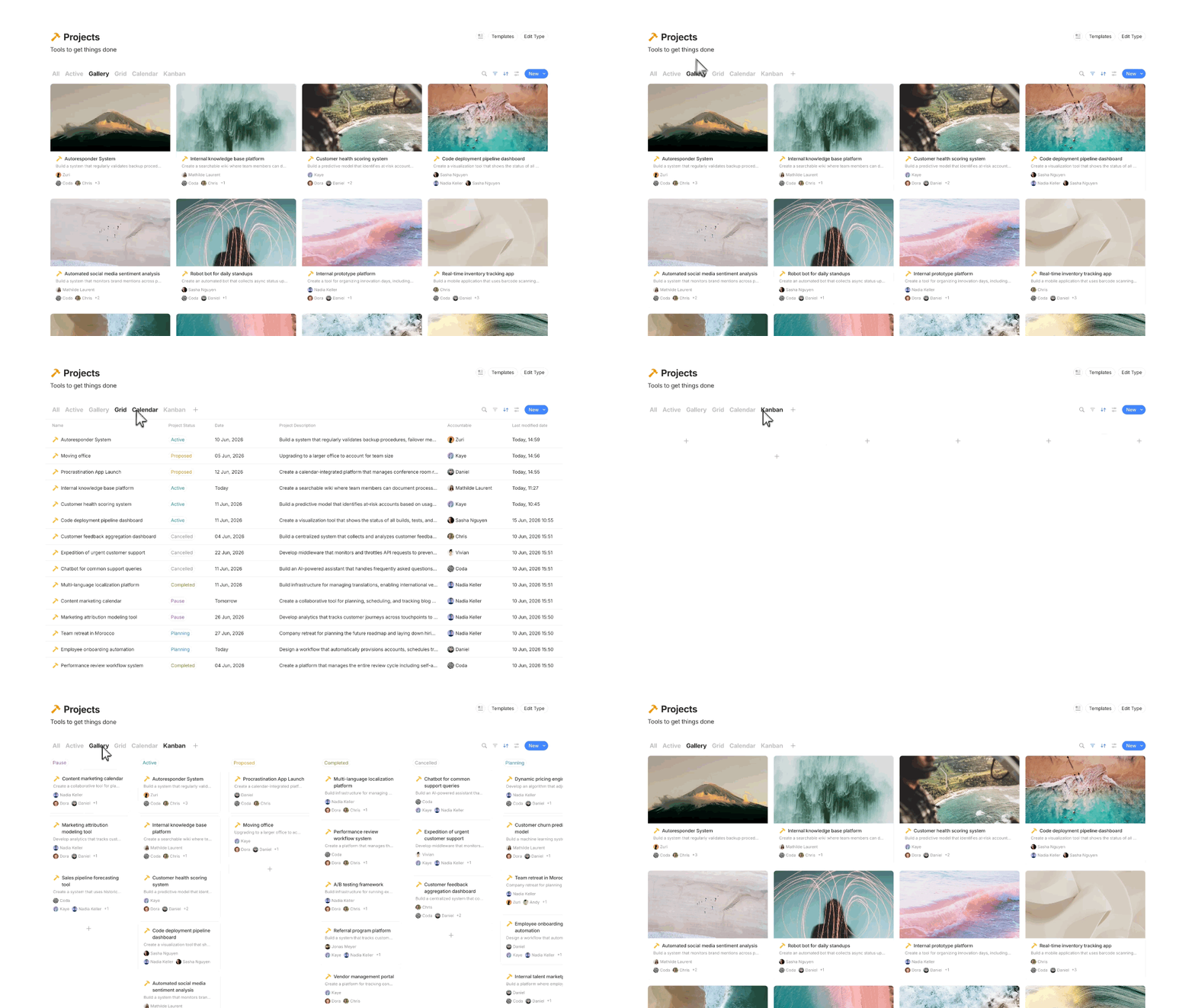
Layouts visually arrange your Objects and their Properties in ways that make it easier to work with. A series of events on a calendar and a bunch of tasks on a kanban board. Here are some examples of various layouts in action.
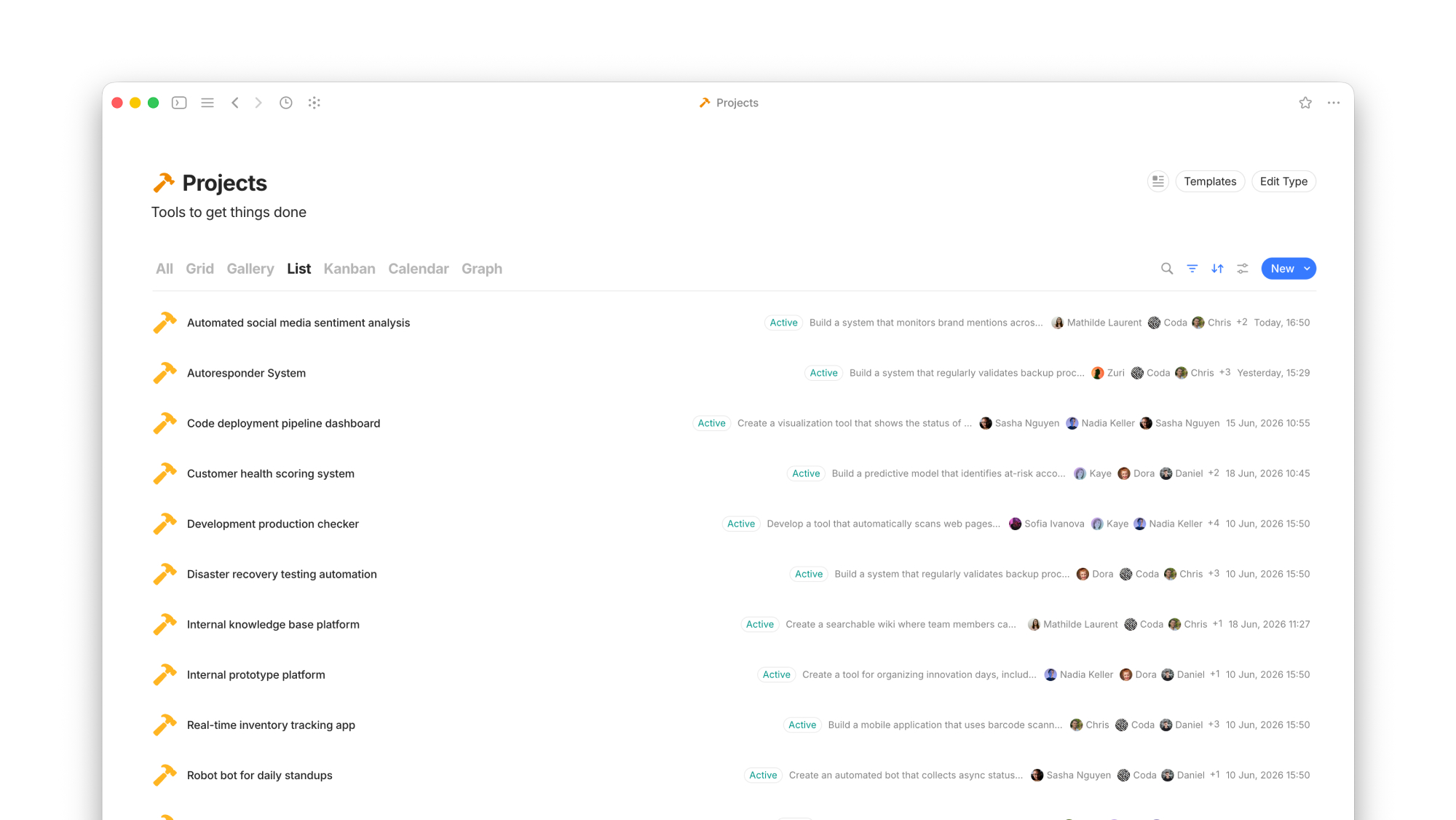
List
Simple vertical rows
Compact, Regular
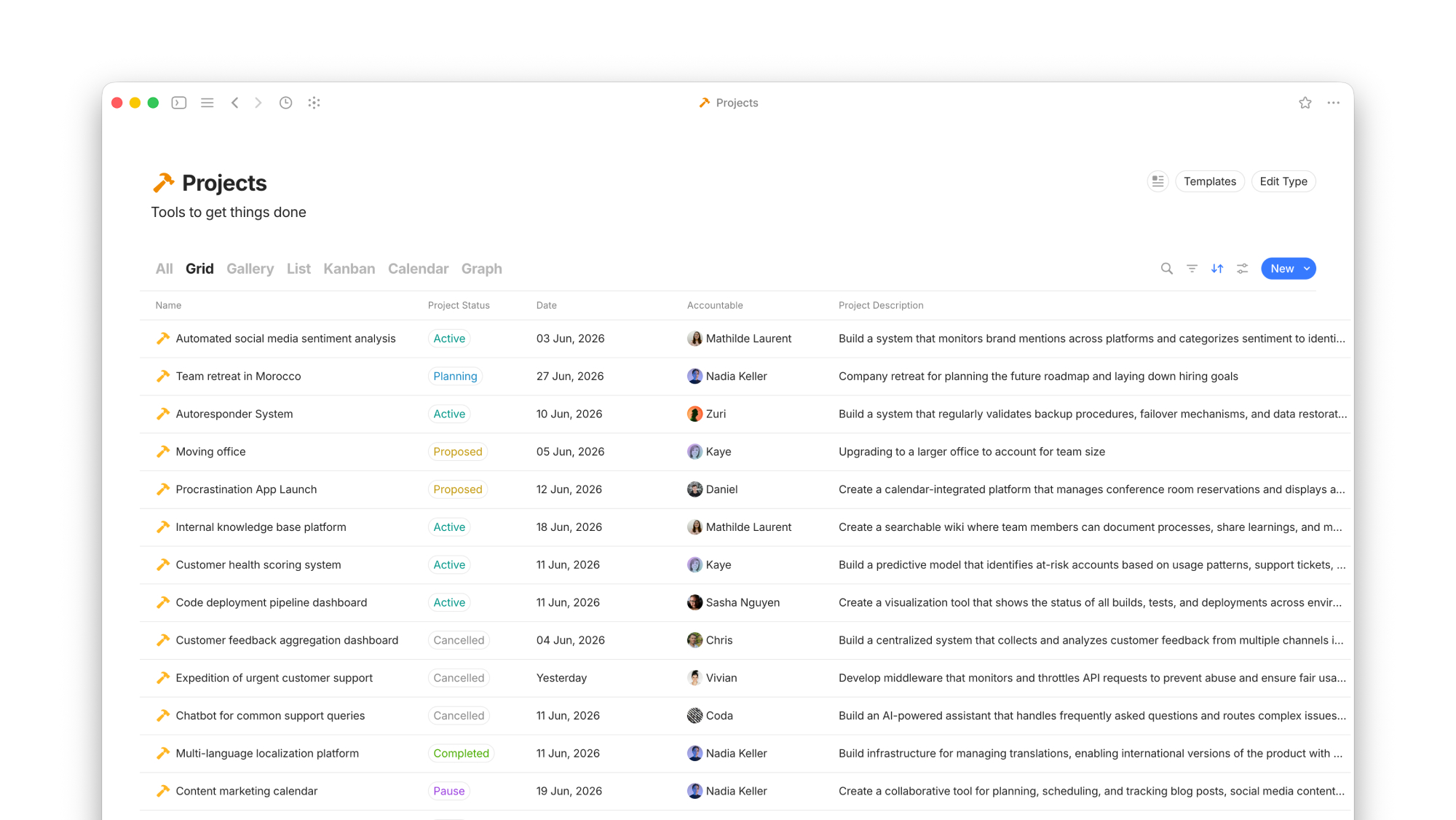
Grid
Spreadsheet-like experience
Wrap content
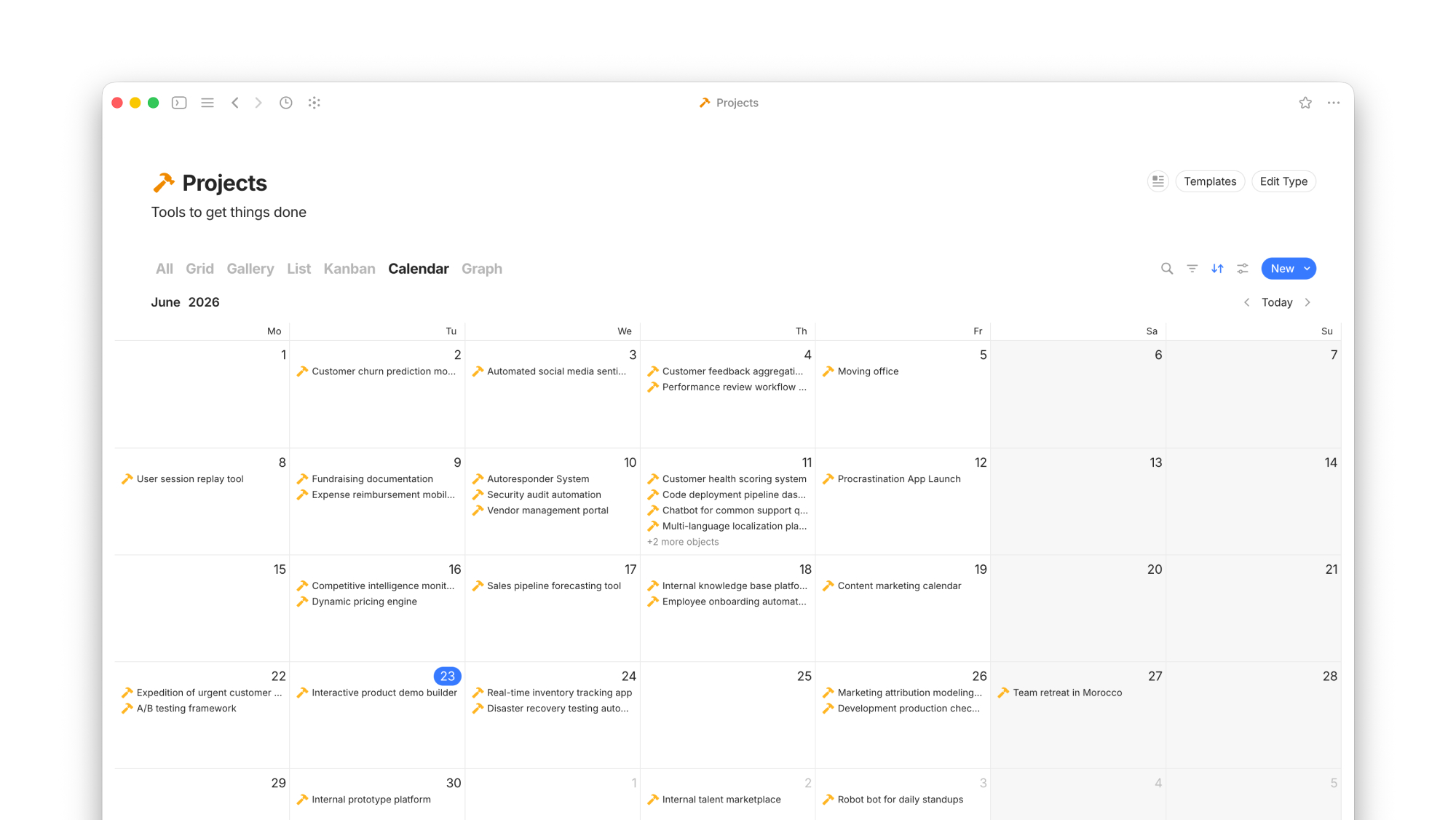
Calendar
Date and time arrangement
Date property
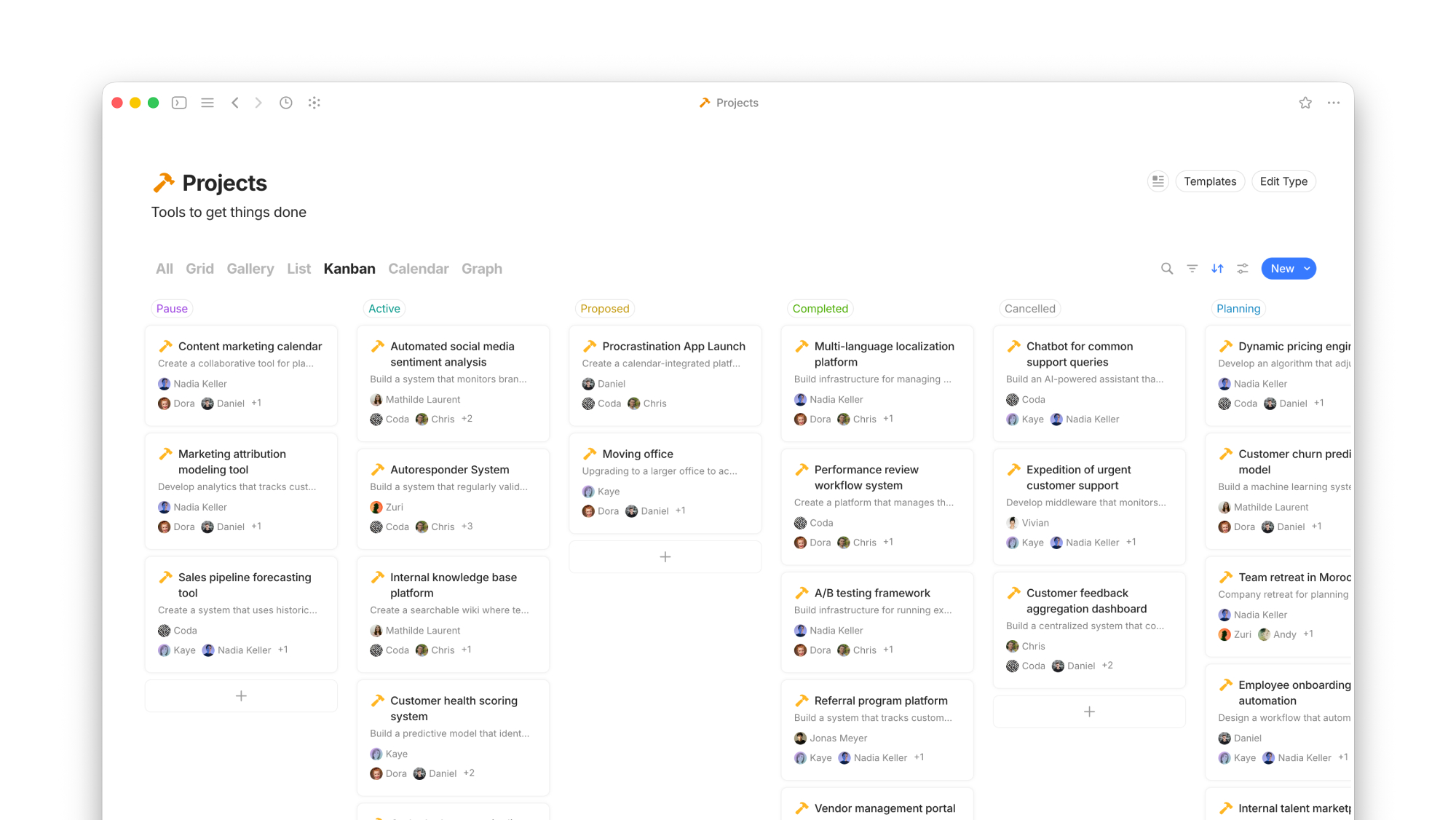
Kanban
Grouping and project management
Group by, Color columns, Cover
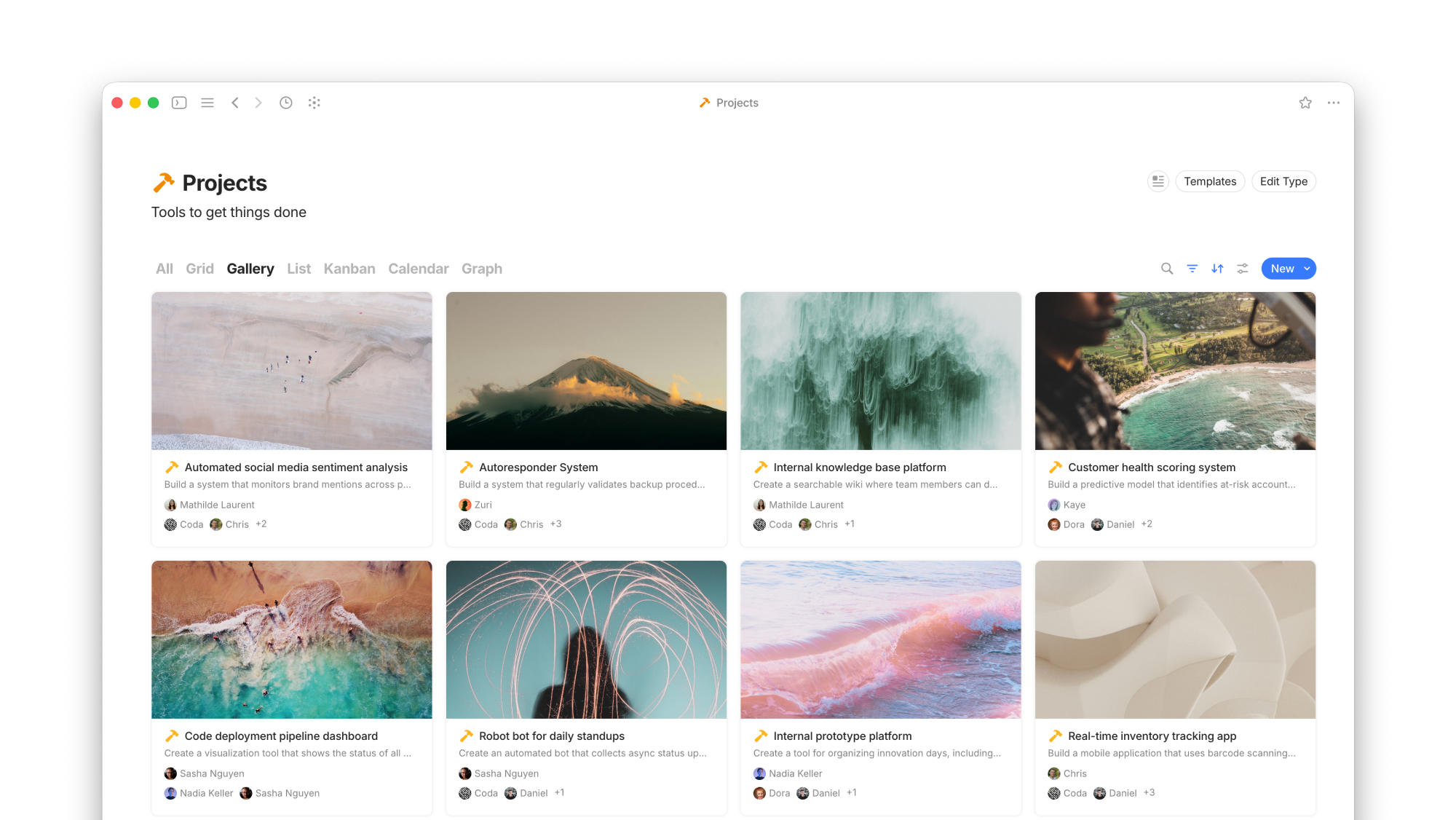
Gallery
Visual highlights
Cover, Card size, Icon, Fit media
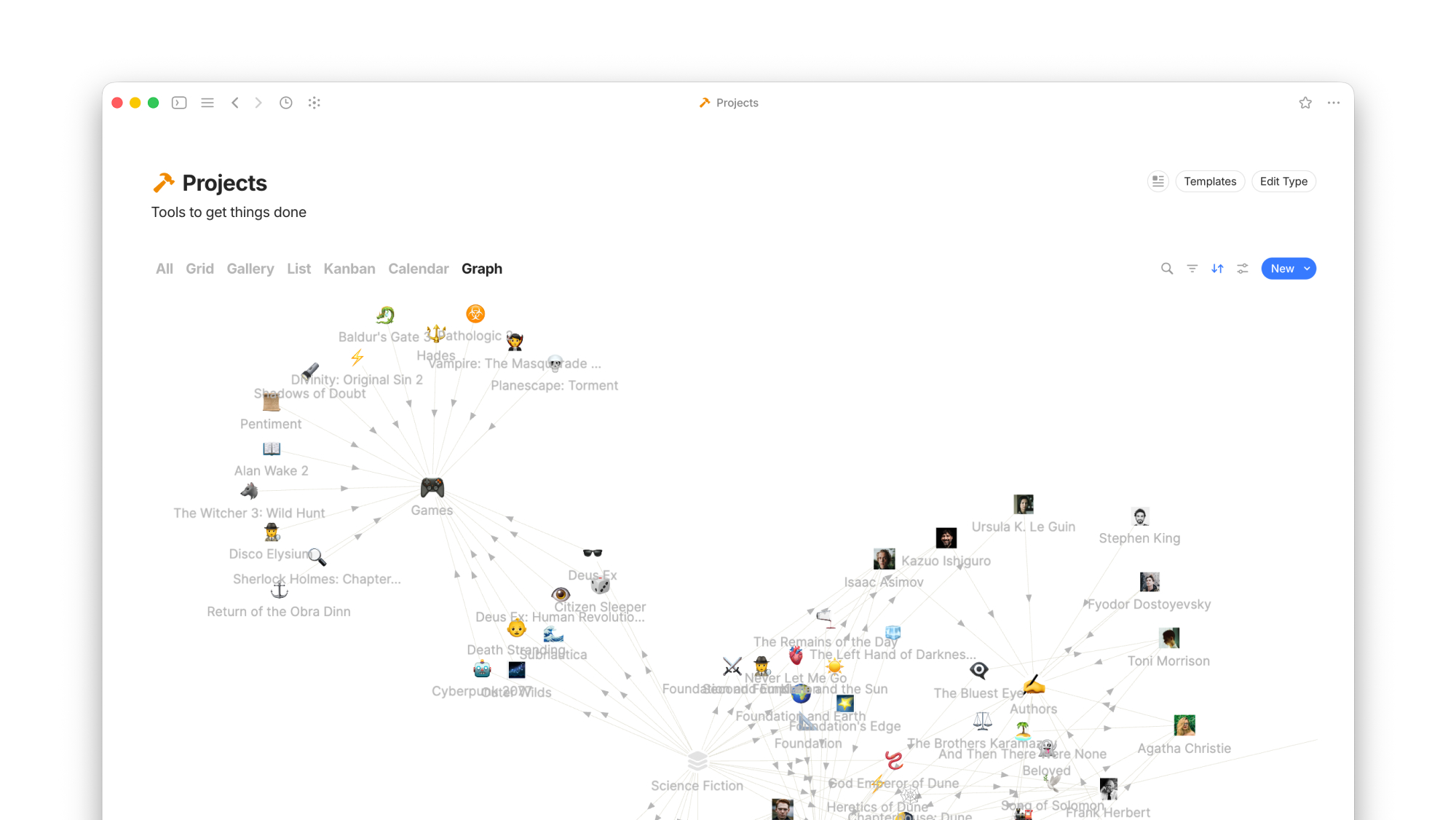
Graph
Inter-connected relationships
Graph settings

Not all views are available on mobile.
Filters
Filters narrow the Objects in your View by matching specific conditions. In other words, they hide parts of your data from the View. Each filter has three parts to it:
Property — which Property to check (such as 'status' or 'due date').
Condition — how to compare (such as 'is not' or 'greater than').
Value — what specific target you're looking for (such as 'in progress' or 'today').
Here are some example filters for projects:
To see what's due today:
Due DateisTodayTo hide completed projects:
Statusis notDoneTo find high-priority items:
PrioritycontainsUrgentandHigh
You can apply multiple filters, they are joined by 'AND'. For more advanced filters using 'OR' logic, grouping, and complex conditions, see Advanced Filters.

Sorts
Sorts set the sequence in which your Objects appear in your View. They don't hide any data; they set the order. Whenever you apply a sort, you have to choose a direction:
Ascending — this will go from lowest to highest ('A to Z' or 'past to future dates').
Descending — this will go from highest to lowest ('Z to A' or 'furthest date first').
Here are some common sorts for projects:
To see what's most urgent first:
Due datesorted byAscending.To see most recent activity:
Last modified datesorted byAscending.To see what's best ranked:
Ratingsorted byDescending.
You can apply multiple sorts to a View. The first sort will apply, followed by the second, and so forth.

Create & Manage Views
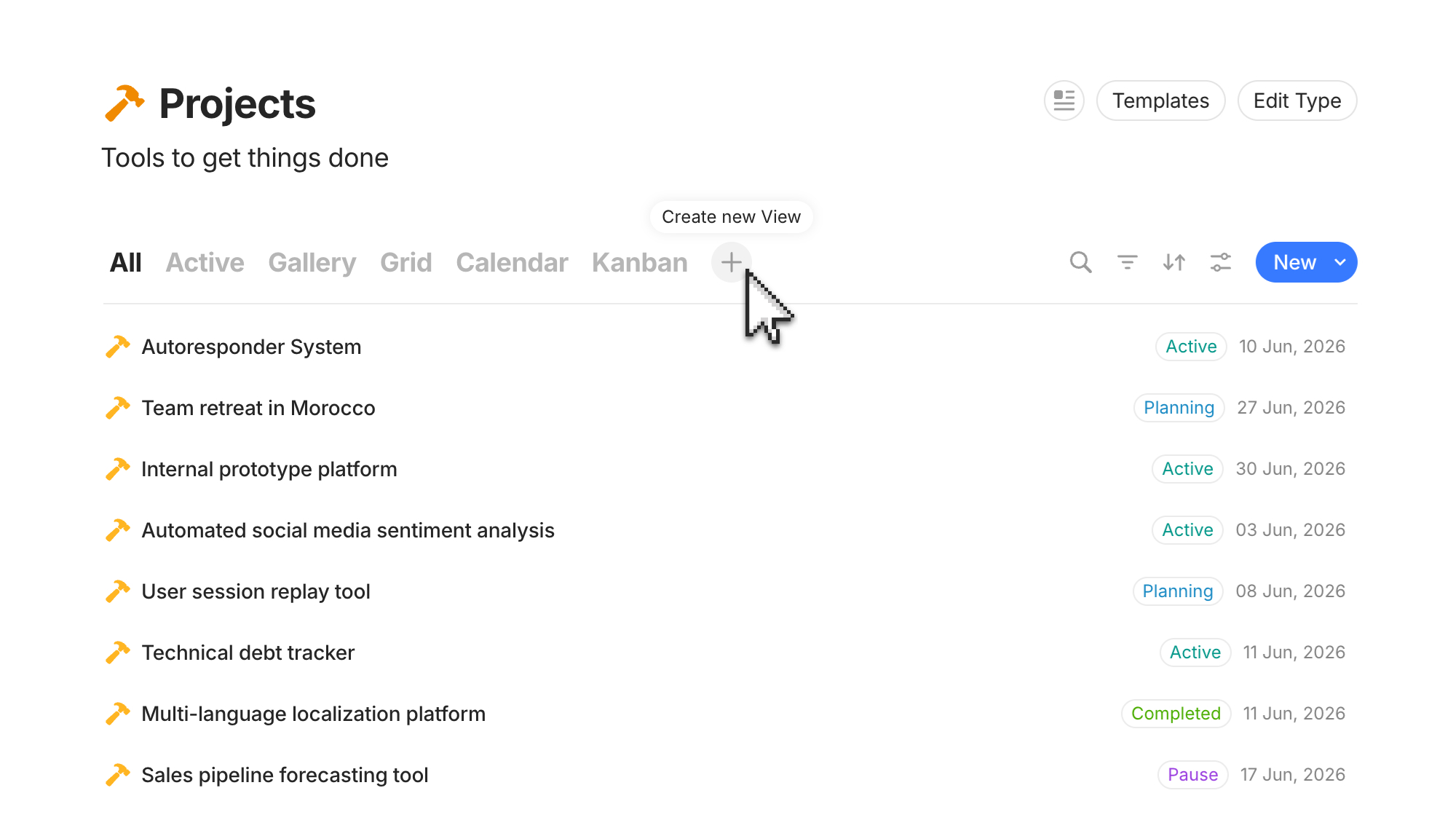
Views are used on all Types, Queries, and Collections. By default, there is one View set, but you can add as many custom Views as you like. Because Views only influence how your data is displayed, you can freely edit, delete, or rearrange them without any risk of affecting your underlying information.
Creating a View
Navigate to any Type, Query, or Collection via the Sidebar.
Click on the 'plus' button in the View Header, which is below the title area.
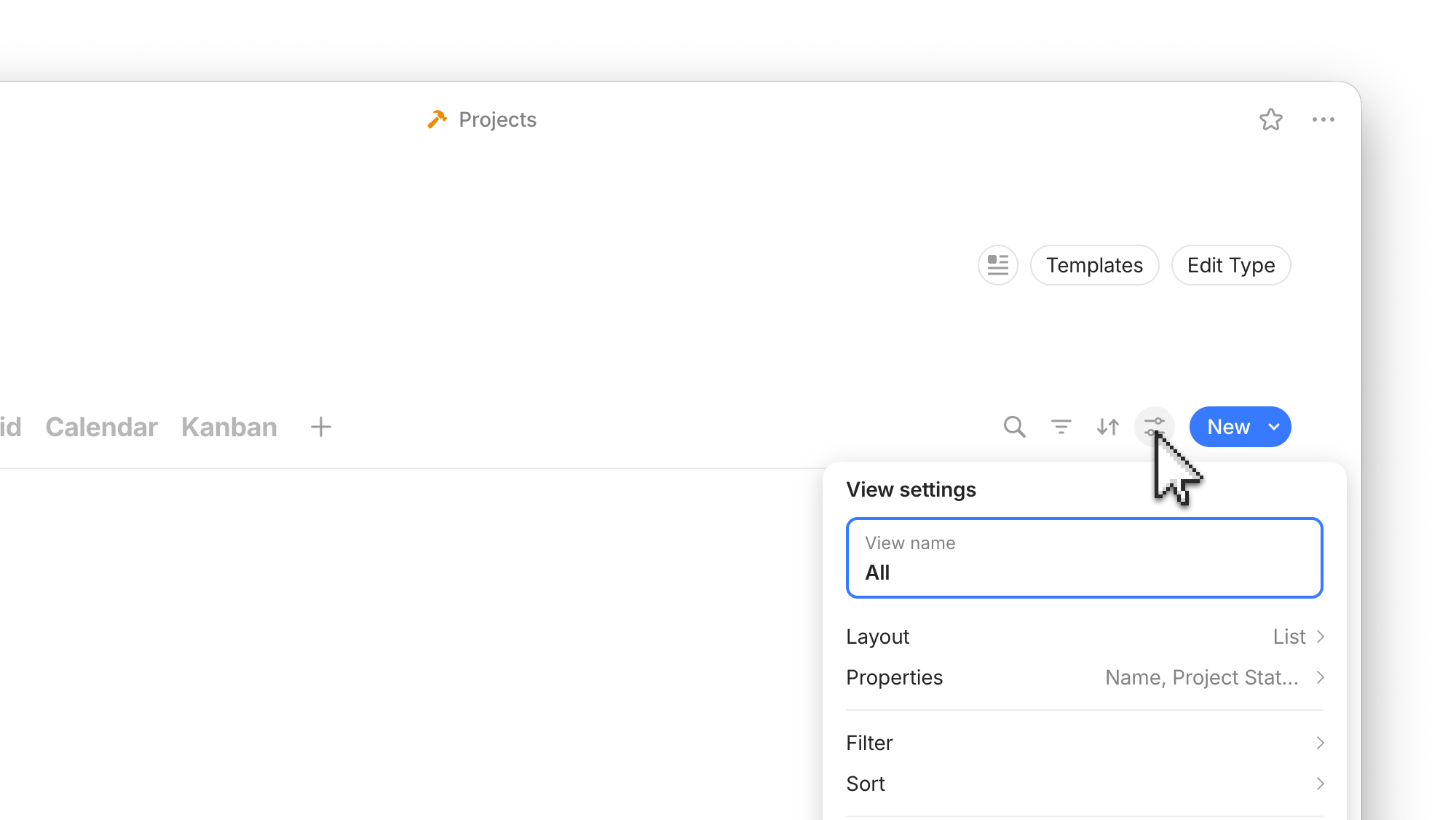
In the 'View settings', you can give it a title, select the layout, and apply filters/sorts.

Change the View settings
Click on the 'View settings' button, which is the icon next to the 'New' button.
Layout — change the layout used to visualize the Objects.
Properties — choose the Properties displayed, its order, and add new ones.
Filter & Sort — apply filters and sorts to the View.
Duplicate view — create a clone of the View with all the same settings.
Remove view — remove the View (does not affect the Objects).
To rearrange the order they appear, click and drag on the View's name that you want to move.

Using Views
Views in Types, Queries, and Collections
Views all follow a three step process: choose a layout, set some filters, and arrange with a sort. Here are some example Views that you could create:
Gallery layout filtered with only your active Projects sorted by priority.
Calendar layout with all your Projects based on deadline.
Grid layout filtered for only Projects assigned to you sorted by latest activity.
Kanban layout filtered for Projects tagged Important grouped by current status.


Views in Sidebar
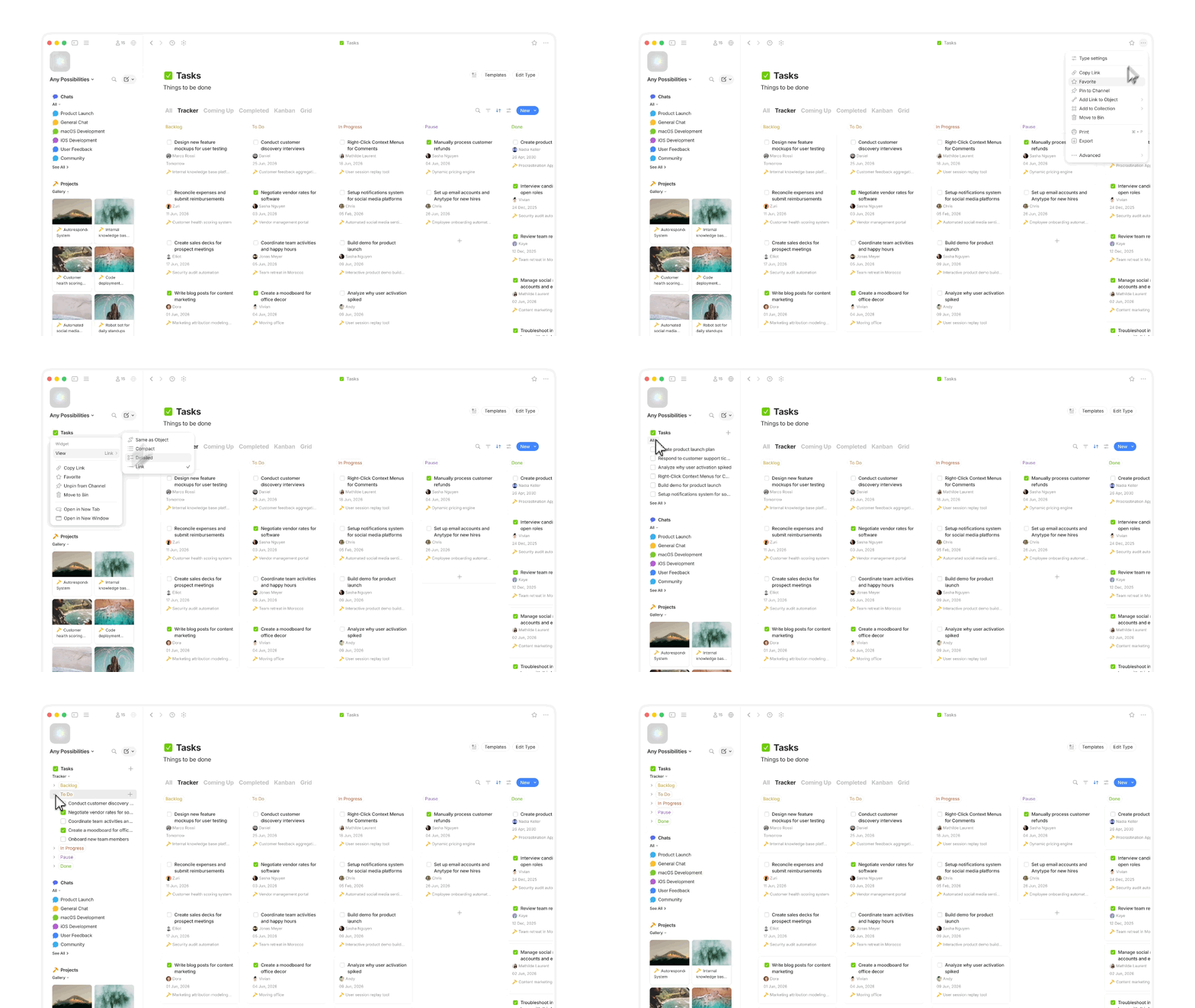
You are able to add Views to your Sidebar for immediate access, also known as Widgets.
Using the 'three dots' button on the top right corner and select Pin to Channel.
Right click the item in the Sidebar.
In the menu section 'View', select Same as Object.
If the View is not showing, hover over the icon and click on the dropdown arrow to reveal it.
You can cycle between the various Views you have already set up, right in the Sidebar.

Views in Objects
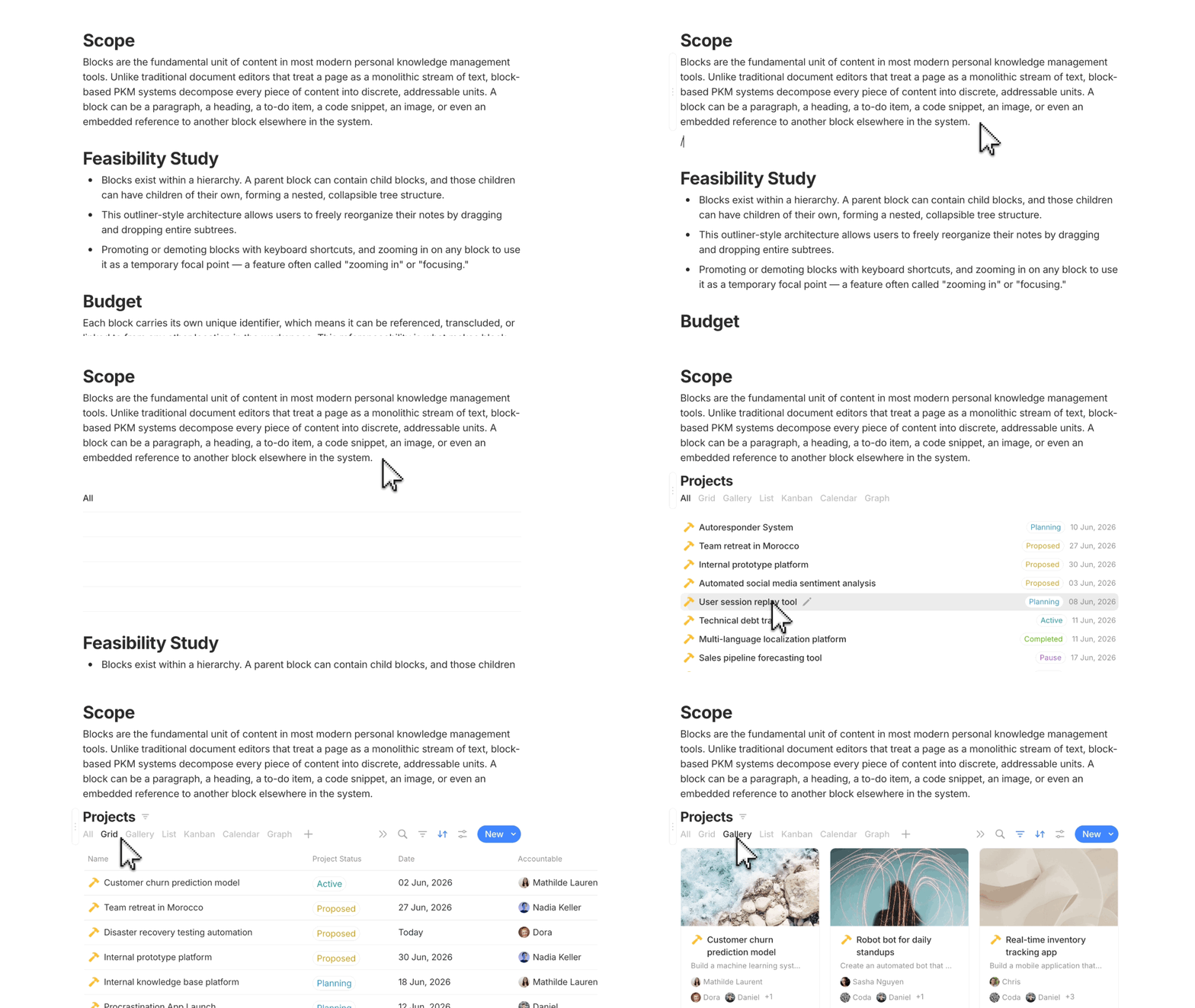
You can use the Inline Query and Inline Collection blocks in the editor to add Views directly into pages. This enables you to see your Objects right alongside your content.
While editing a page, open the command menu using the
+button or/inlineshortcut:Select Inline Query to add a Type or Query, and Inline Collection for a Collection.
Edits made to the view of an Inline Query or Inline Collection apply only to that specific block. Editing an Inline View inside an Object does not affect the master View, which is always preserved at the Type, Query, or Collection level. This means each Object can have its own version of the Inline View without ever touching the master.
This is distinct from editing Objects and their Properties on an Inline View—changes made there do affect the Object itself and are reflected across the entire Space.

Search in Views
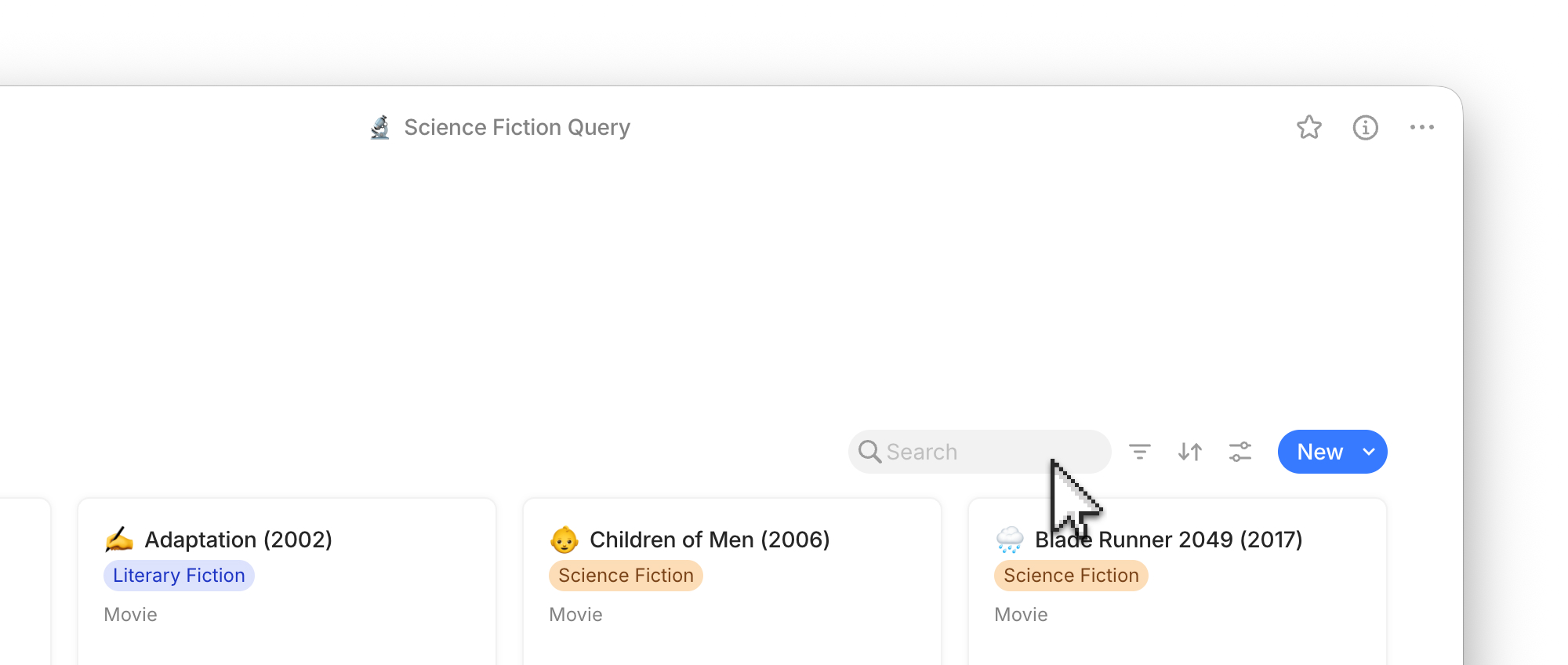
In the View toolbar next to the 'New' button, there is a search icon. Using search here filters the Objects in the View based on the text you enter. This is great for temporarily narrowing down your Objects even further.

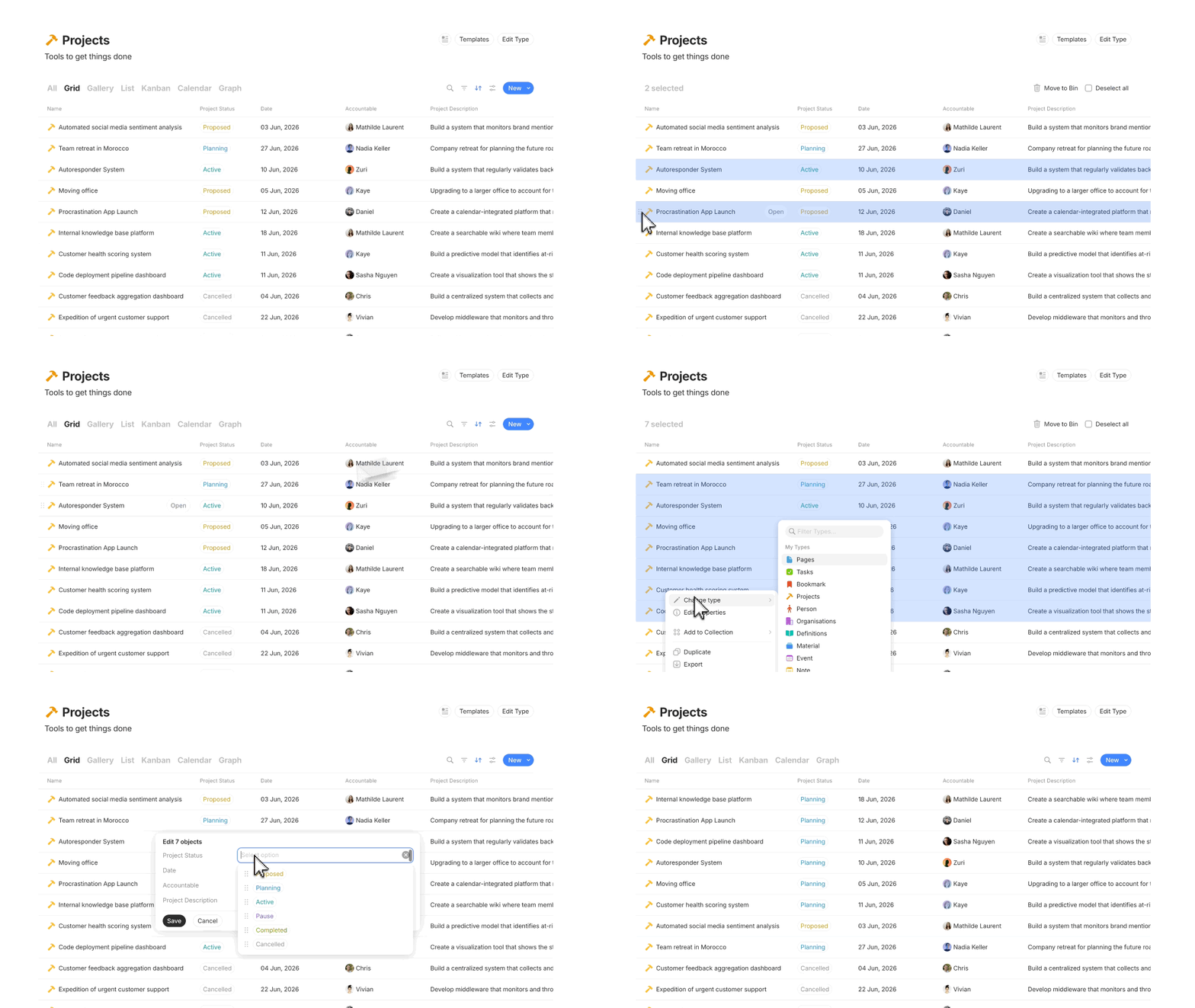
Bulk editing Objects
You can edit multiple Objects at the same time—change types, edit properties, and mass delete. This is best done in a View set to the Grid layout, but it also works in other layouts as well.
Navigate to the View from the Sidebar.
Select all Objects you want to edit. You can do this by:
Use the shortcut
Cmd/Ctrl + Ato select all.Click and drag to create a highlight box.
Click on the left handle (only in Grid and List layout).
Shift + Clickto add more selections.
Right-click and choose from various actions:
Change Type
Edit Properties
Add to Collection
Export
Duplicate
Move to Bin

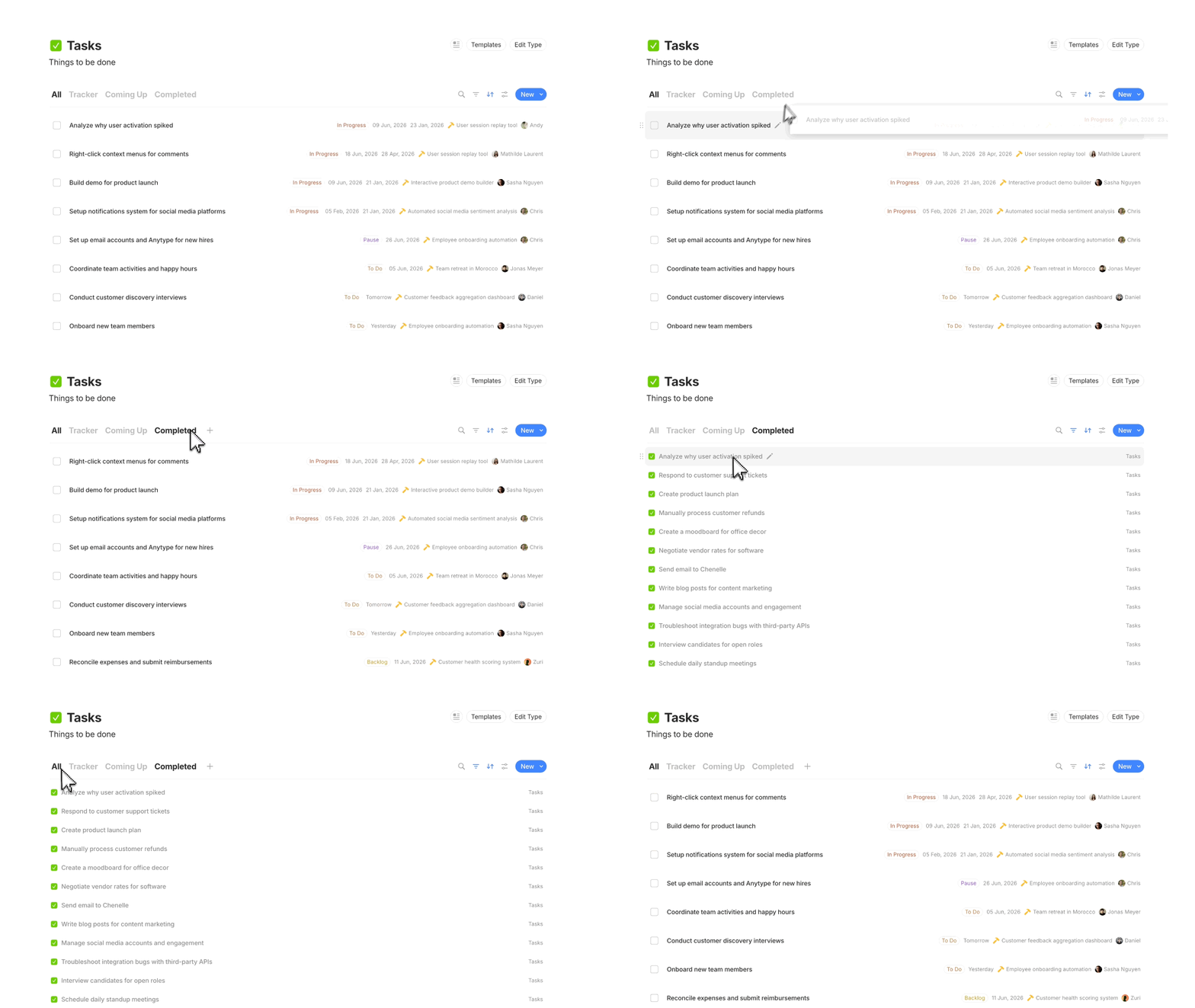
Dragging Objects between Views
When you drag and drop an Object from one View to another, its Properties update to match that View's filters automatically. For example: drag a task from your 'All' View to your 'Completed' View, and the Status Property updates to "Done."

Deleting Views
Views are separate from the Objects they organize. Deleting a View does not affect the underlying Objects — you can safely remove a View from a Type, Query, or Collection without losing any data.
To delete a View, right-click it to reveal a menu. Alternatively, you can delete it from the View settings in the View toolbar.
Tips
Name your Views by their layout or filter. By applying useful names, you can more quickly understand what you're navigating such as 'High-priority Tasks' and 'Archived Projects'.
When bulk editing Objects, it's best to first set up the View filters to show only the Objects you want to edit. This makes selection much quicker. You can also create a Query to do this.
Last updated
Was this helpful?