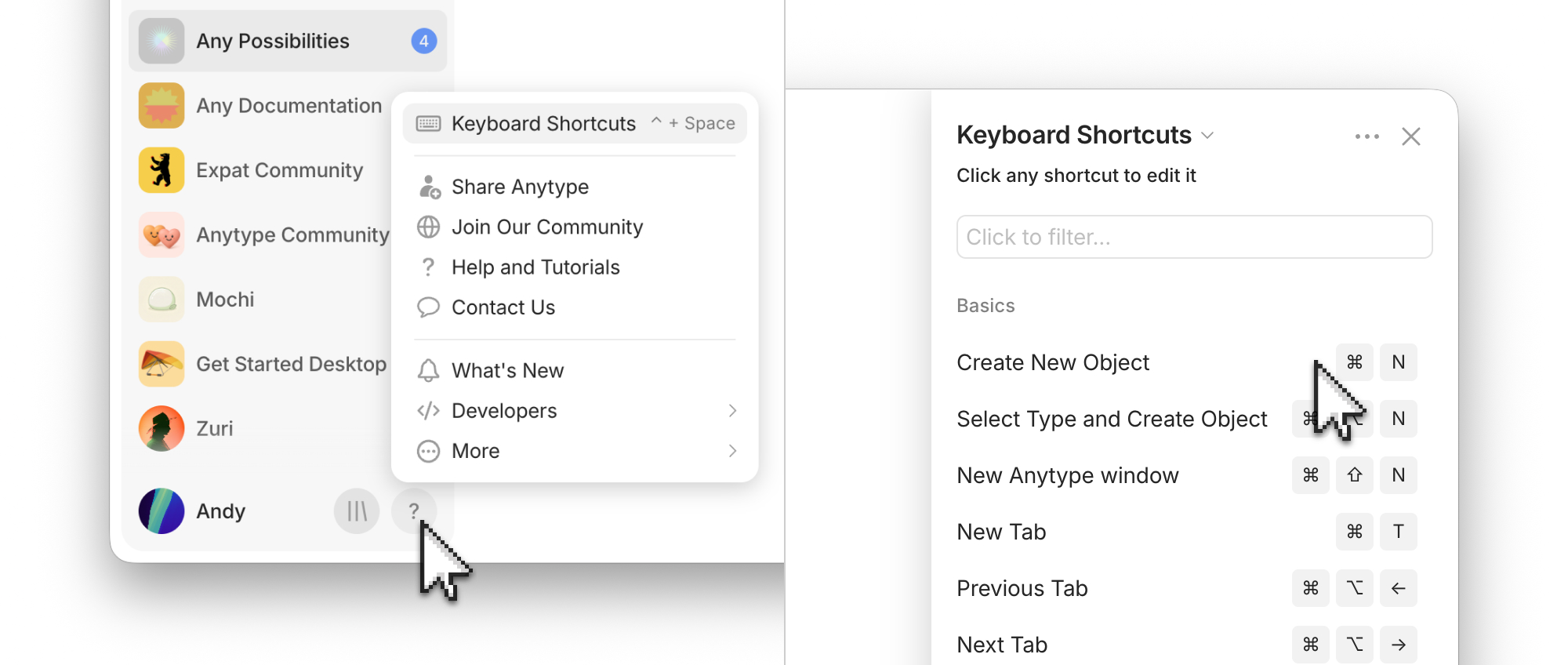
Keyboard Shortcuts
Reference and customize Anytype's keyboard shortcuts.
Anytype's shortcut system is fully customizable. Almost every shortcut can be remapped, many actions support two key combinations at once, and you can import or export your shortcut configuration to share with other devices or teammates.
This page covers the most-used shortcuts and how to customize them.
Opening the Shortcuts
Click ? (the help icon) in the bottom-left corner of the app, then choose Keyboard shortcuts. The panel opens with shortcuts grouped by category.
You can also assign a shortcut to open the Shortcuts panel itself, so you can summon it from anywhere with one keystroke.

Suggested Shortcuts
Toggle Vault & Channel Sidebar
Create a focus mode to remove distractions.
Copy Link
Quickly get the link for your Object.
New Tab
Create as many tabs as you like.
Close Tab
Quickly close your tabs.
Search
Quickly find what you're looking for.
The specific shortcut depends on your device platform. Open Keyboard Shortcuts to find your defaults.
Customizable Shortcuts
Most shortcuts can be reassigned. Some are fixed, such as Esc to close a popup, for safety. Most other shortcuts are customizable.
To remap a shortcut:
Hover over your Profile Picture > ? Help > Keyboard Shortcuts
Find the action you want to remap.
Click the existing shortcut field (or the empty field for unmapped actions).
Press the new key combination.
The change saves immediately.
Dual key combinations
Some actions support two different shortcuts simultaneously. This is useful when:
You want both a Mac-style and a Windows-style shortcut for the same action
You want both a single-key and a chord shortcut
Different team members have different muscle memory
For these, the Shortcuts panel shows two slots — fill in either or both.
Importing and exporting shortcut maps
You can save your full shortcut configuration to a file:
Profile Picture > ? Help > Keyboard Shortcuts > Three-dots menu
Export Shortcuts Mapping
Import Shortcuts Mapping
Platform differences
Anytype runs on macOS, Windows, and Linux. Most shortcuts use Cmd on macOS and Ctrl on Windows / Linux (the panel shows the right symbol for your OS). A few platform-specific shortcuts:
Windows: Alt opens the system menu (a Windows-only convention)
macOS: Cmd + Q quits the app entirely
Linux: Ctrl + Q quits the app entirely
Tips
Memorize the top three first. Cmd/Ctrl + K (search), / (slash menu), and @ (mention) cover most of what you do. Get comfortable with these and you've shaved 80% of the navigation time off.
Reassign Caps Lock if you don't use it. A common power-user trick: rebind Caps Lock to something useful at the OS level (Esc, or a modifier), then use Anytype's customization to assign Caps + a letter as your "global Anytype" shortcut for opening search or creating notes.
Last updated
Was this helpful?