> For the complete documentation index, see [llms.txt](https://doc.anytype.io/anytype/llms.txt). Markdown versions of documentation pages are available by appending `.md` to page URLs; this page is available as [Markdown](https://doc.anytype.io/anytype/settings/vault-settings.md).
# Vault Settings
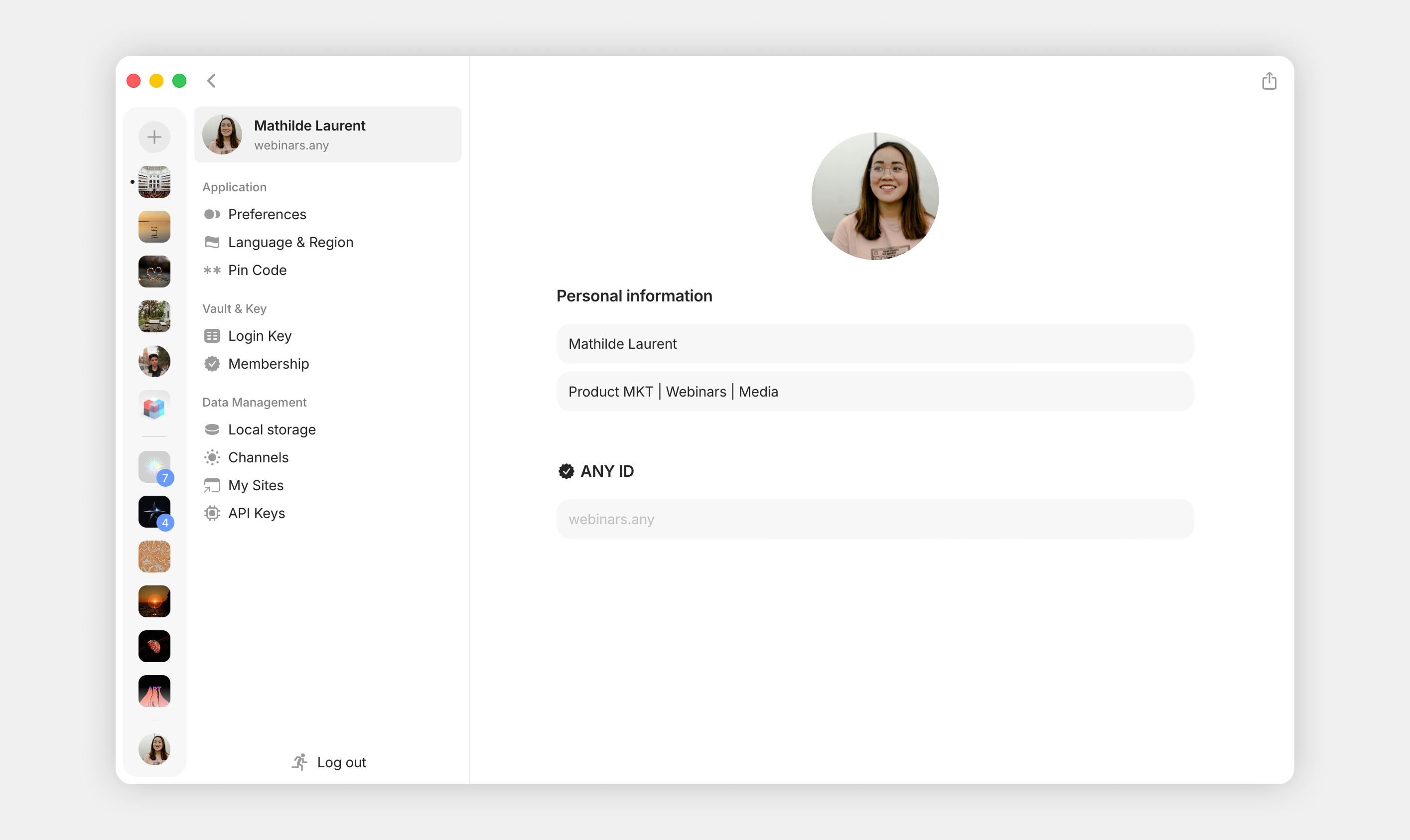
Your [Vault](/anytype/basics/vault.md) is essentially your account. This section contains your preferences and settings. To access it, you can:
1. Open your [Vault Sidebar](/anytype/basics/sidebar.md).
2. Click your profile picture in the bottom-left corner.
Or use the menu of your operating system:
1. Open the Anytype menu on your top app bar (macOS, Windows, Linux).
2. Navigate to **Settings**.
3. Select the option **Vault**.
## Profile
Here you can add your **name, bio,** and **profile picture.** When you are in a space, your profile is also treated as an Object as a Space Member.
## Application
### Preferences
#### Appearance
* **Set color mode:** Choose between light, dark, or auto color modes.
* **Notification sound:** Choose "Off" or one of several tones.
#### Interface
* **Channels hub density: Compact** (Stripe view) or with **Messages Previews**
* **Always show tab bar:** Choose whether you want the tab bar to always be visible
* **Automatically show and hide sidebar:** With this option disabled, the sidebar will not automatically appear when you hover over the left side of the screen.
#### Content & Views
* **Open objects in fullscreen:** You can decide whether you want all objects to be opened in fullscreen by default or in a modal window
* **Object link style:** Choose the default style for the `/link` command: card or text.
* **File block style:** Choose whether you want the file block to use the embedded style or be displayed as a simple link
* **Click to edit title in Grid view:** Choose whether clicking a title in Grid view enters edit mode or opens the Object directly.
#### Messaging
Send messages in Chats and comments in Discussions with `Enter` or `Cmd+Enter`.
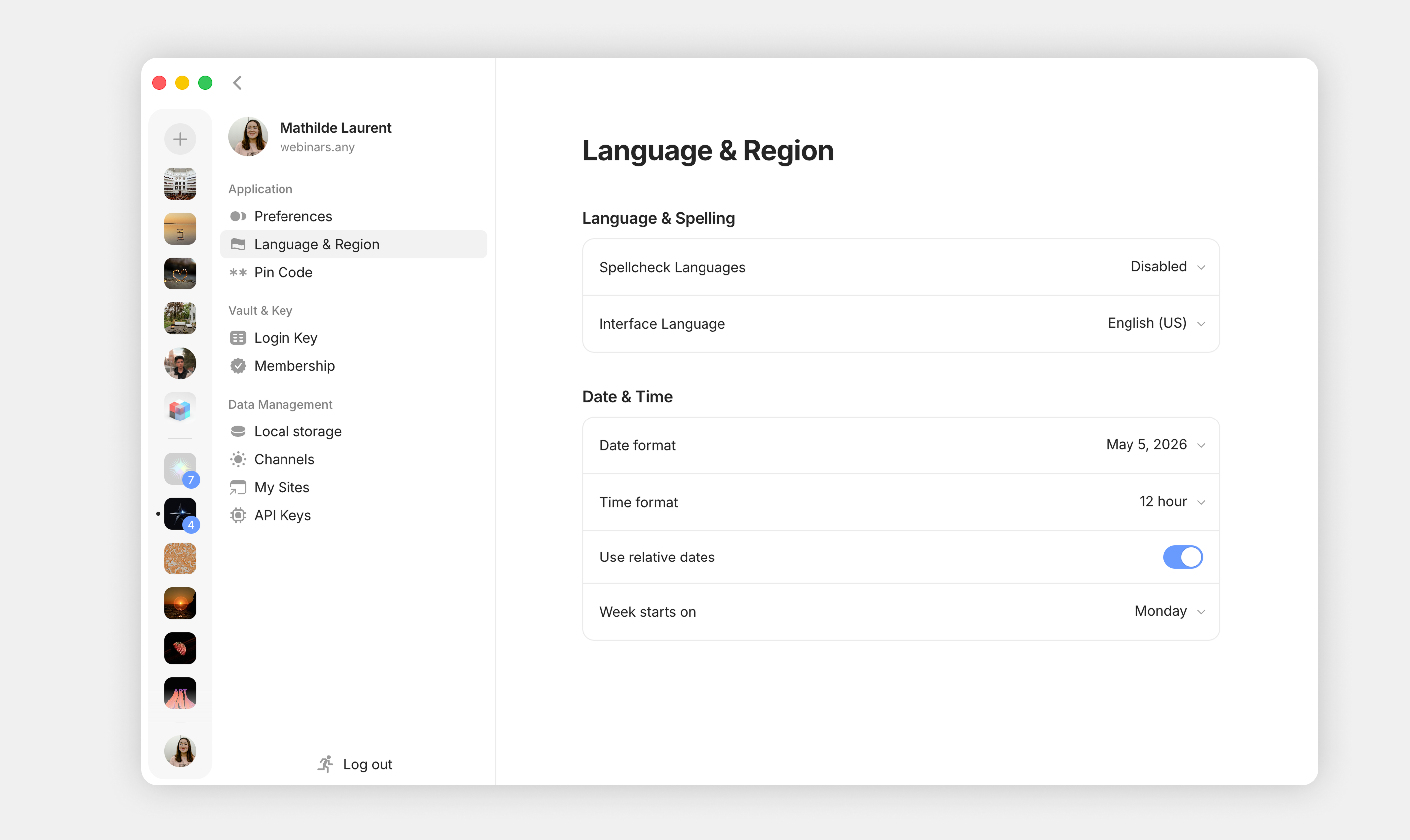
### Language & Region
#### Language & Spelling
* **Spellcheck Languages:** You can enable automatic spellcheck from 40+ languages, or disable the spellcheck.
* **Interface Language:** You can choose amongst the community-translated versions to localize your interface.
#### Date & Time
* **Date & Time formats:** Choose the date and time formats used across your Vault.
* **Use relative dates:** You can decide whether you want relative dates like today / tomorrow to be used, or whether you want all dates to show the exact date.
* **Week starts on**: You can now choose whether your week starts on Sunday or Monday. Head to your updated settings to make the switch in the date-picker.
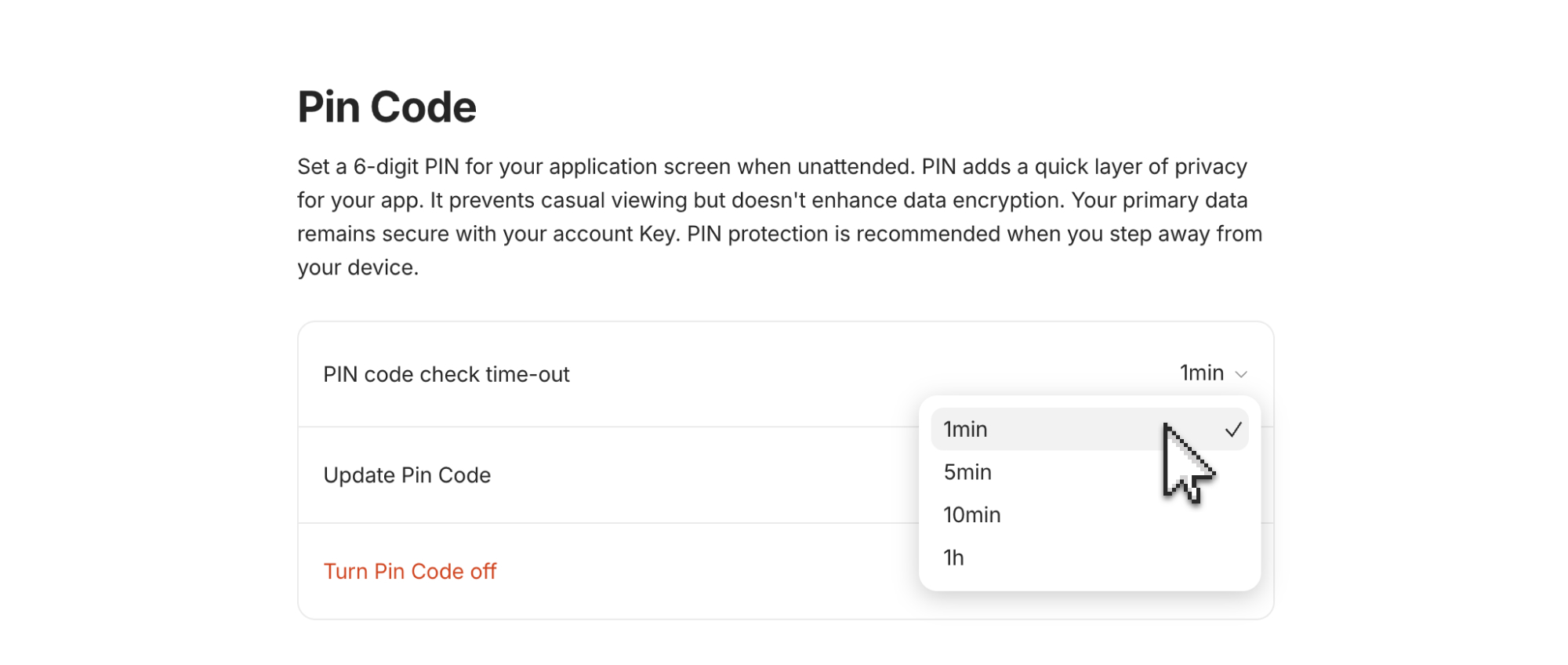
### Pin Code
Set up a PIN code to lock the Anytype desktop window for added privacy. Here's how it works:
* **Auto-Lock:** The app will ask your PIN after a chosen inactivity period (1 minute, 5 minutes, 10 minutes, or 1 hour) and whenever you view your [Key](/anytype/basics/key.md) in Settings.
* **PIN is device-specific:** The PIN lock belongs solely to the desktop where it was created. Setting, changing, or removing it on one computer will not affect your other devices.
* **App-Level Screen Lock:** The PIN acts strictly as a visual lock for the application interface. It is not tied to your account and does not act as a secondary Key.
* **PIN is Not Added Encryption:** Setting or losing a PIN does not alter your underlying data protection. Your Vault is always encrypted using your Key.
{% hint style="warning" %}
**The PIN is a screen lock for the app on a single device.** It is not part of your account and it is not a second Key — it doesn't encrypt anything, and setting or losing it changes nothing about how your data is protected. Your data is encrypted with your [Key](/anytype/basics/key.md).
{% endhint %}
#### If you forget your PIN
Forgetting your PIN will never lock you out of your Vault or put your data at risk. To regain access to your app, have your [Key](/anytype/basics/key.md) ready and follow these instructions:
1. Select I forgot my PIN on the lock screen and confirm.
2. You will be logged out on that device, and the PIN will be cleared.
3. Log back in using your Key. Your local data remains safely on the device, and the PIN requirement will be removed.
> Troubleshooting Note: If the reset option does not appear on your lock screen, update Anytype to the latest version. Reinstalling the app will not reset your PIN, as it is managed by your operating system rather than stored within Anytype's application data.
#### Better security than a PIN
Operating system-level security provides better protection than an app-level PIN and should be seen as your first line of defence. Use these best practices:
* **Create Separate OS Accounts:** Never share a desktop login. Set up dedicated user profiles so others cannot access your local app files or session data.
* **Require Passwords:** Set a robust password for your user account.
* **Enable Auto-Lock:** Configure your operating system to automatically lock the screen after a brief period of inactivity.
* **Lock Before Stepping Away:** Get into the habit of manually locking your screen whenever you leave your desk, especially in public places. It's best to setup a quick shortcut of your preference.
***
## Vault & Key
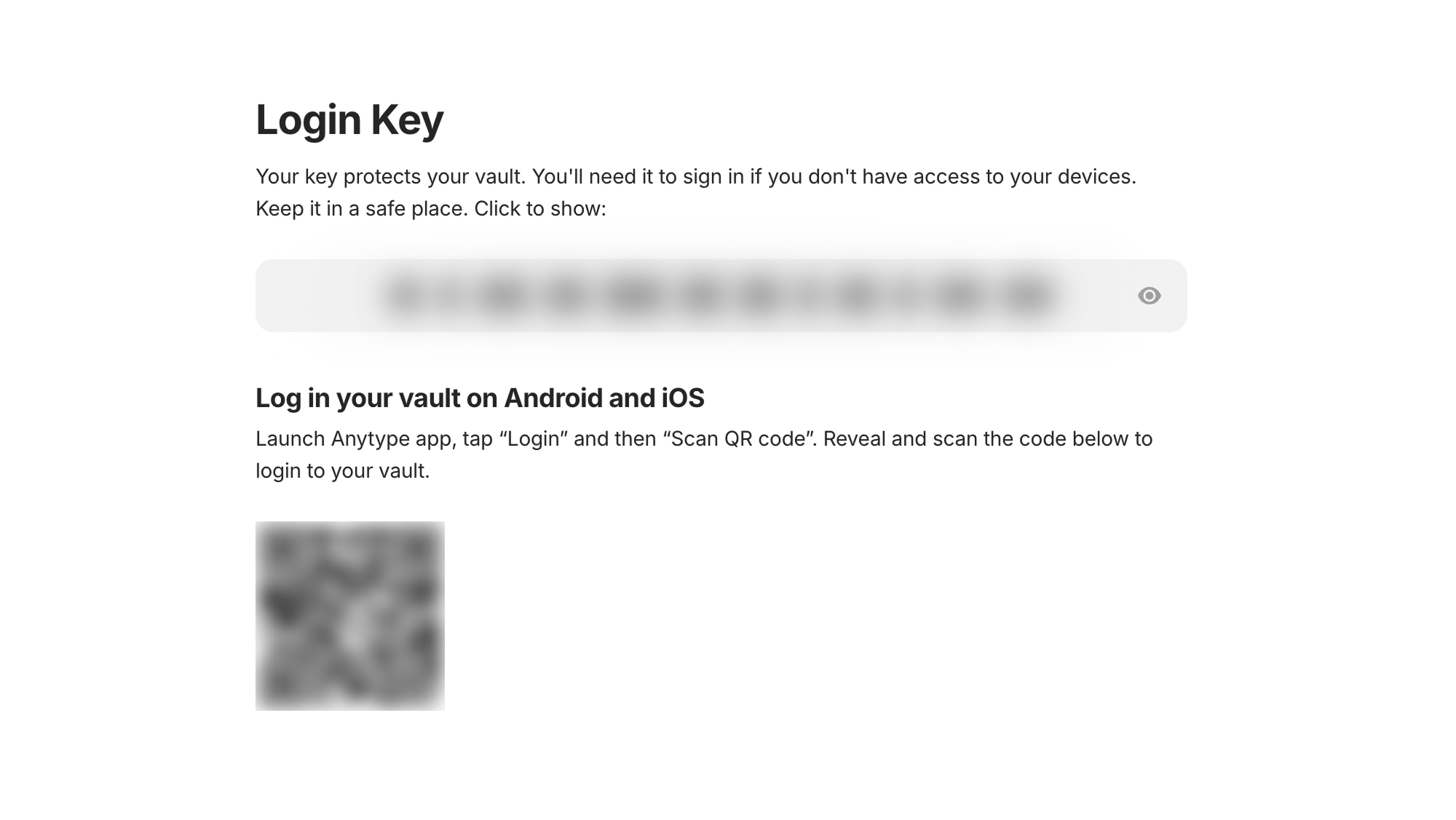
### Login Key
You can access your Key or scan the QR code to connect your mobile device. For more details, please check [Key](/anytype/basics/key.md).
**Vault Deletion:** Also, if you would like to delete your vault, you can do it in this section. Learn more here: [Data Erasure & Recovery](/anytype/data/data-erasure-and-recovery.md)
***
## Data Management
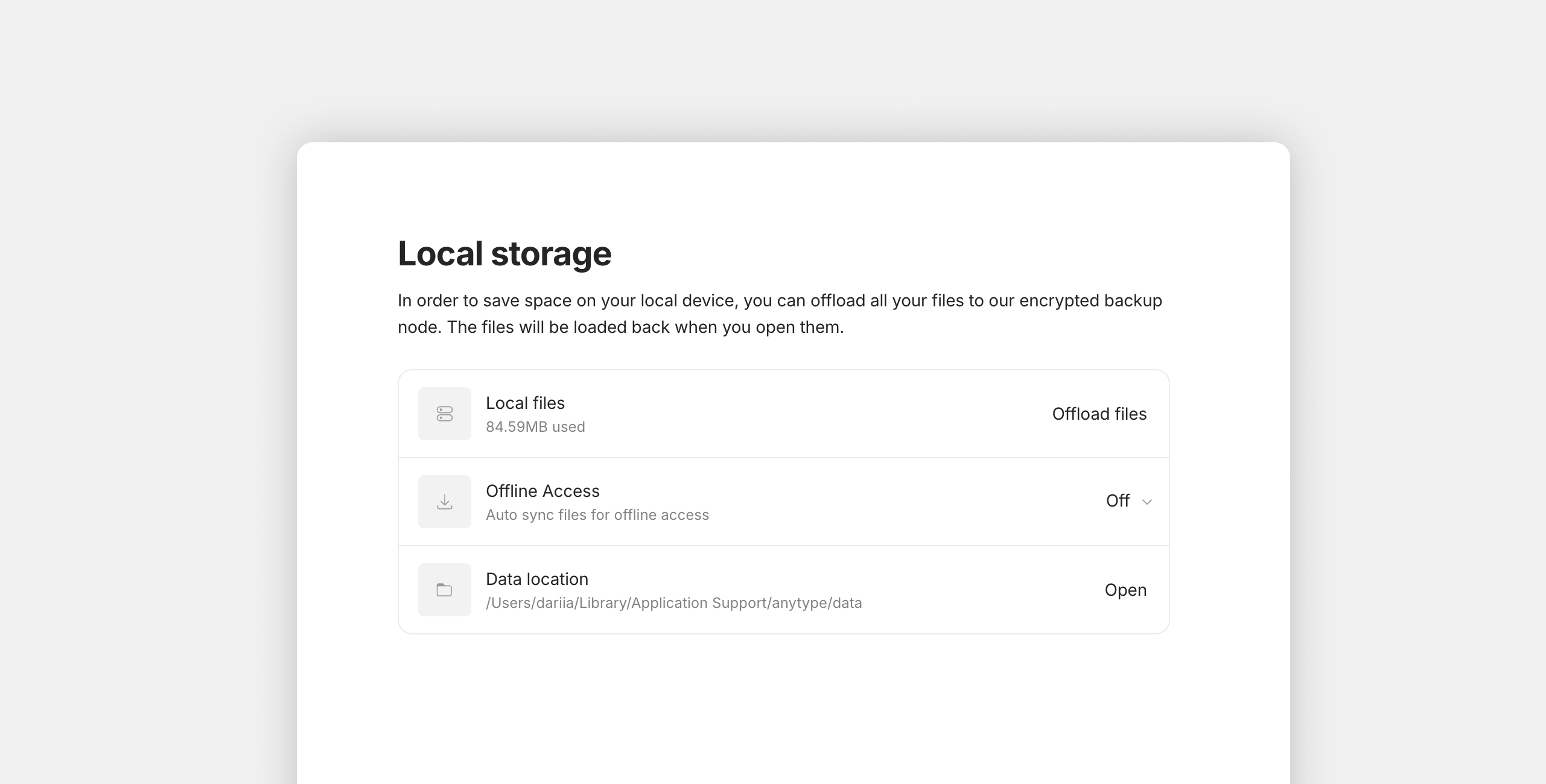
### Local Storage
* **Local Files:** You can choose to offload files stored in Anytype to our Anytype Network.
* **Offline Access:** You can choose a storage threshold (Off, 20MB, 100MB, 250MB, 1GB, or Unlimited) to control how much data is auto-synced for offline use.
* **Data Location:** You can also decide where your data is stored (desktop only).
### Channels
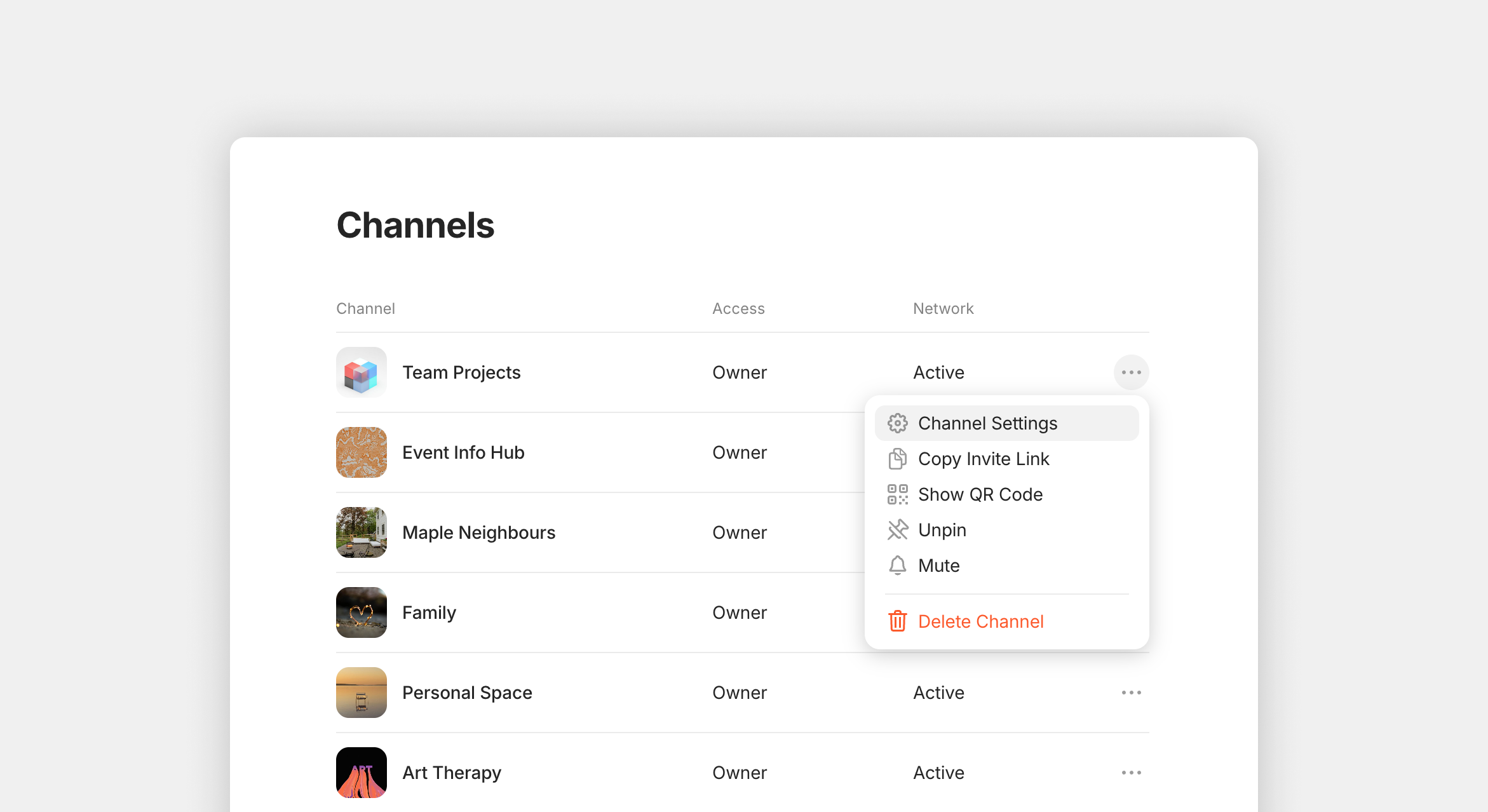
Here you can find a list of all your Channels, access roles, and network statuses. The three-dot menu also contains the "Invite Link," QR Code, and "Delete Channel" options.
### My Sites
Here you can find and manage all previously published Objects.
### API Keys
Here you can find, manage, and create API keys.
---
# Agent Instructions
This documentation is published with GitBook. GitBook is the documentation platform designed so that both humans and AI agents can read, navigate, and reason over technical content effectively. Learn more at gitbook.com.
## Querying This Documentation
If you need additional information that is not directly available in this page, you can query the documentation by asking a question.
Perform an HTTP GET request on the following URL with the `ask` and `goal` query parameters:
```
GET https://doc.anytype.io/anytype/settings/vault-settings.md?ask=&goal=
```
`ask` is the immediate question: it should be specific, self-contained, and written in natural language.
`goal` is what the user is ultimately trying to achieve, the reason they need the answer. Sharing it helps GitBook give you a better, more relevant answer. A goal is most helpful when it describes the outcome the user wants rather than restating the question. For example, with `ask=how do I create an API token`, a goal like `automate deployments from our CI pipeline` lets GitBook tailor the answer to that use case.
The response will contain a direct answer to the question and relevant excerpts and sources from the documentation.
Use this mechanism when the answer is not explicitly present in the current page, you need clarification or additional context, or you want to retrieve related documentation sections.
.png?alt=media)
.png?alt=media)
.png?alt=media)